RSVPlinks Help Center
How to set up an event, design the page, collect RSVPs and run the day. Every topic shows the real screen, with numbered markers on the part to click.
Start here
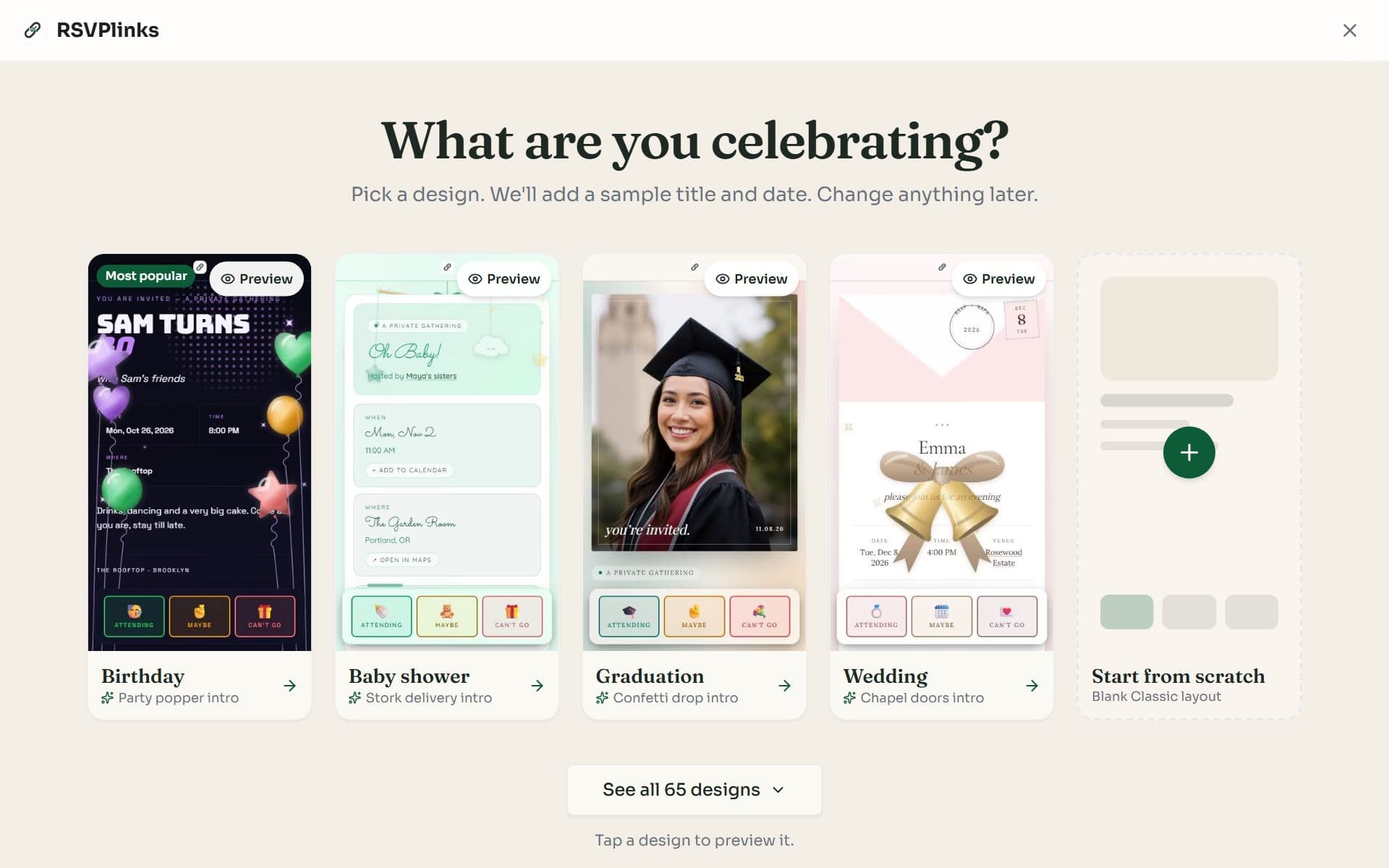
Create your first event
Pick a design, add a title and date, press Create Event and share one link. A step-by-step walkthrough with screenshots of each screen.
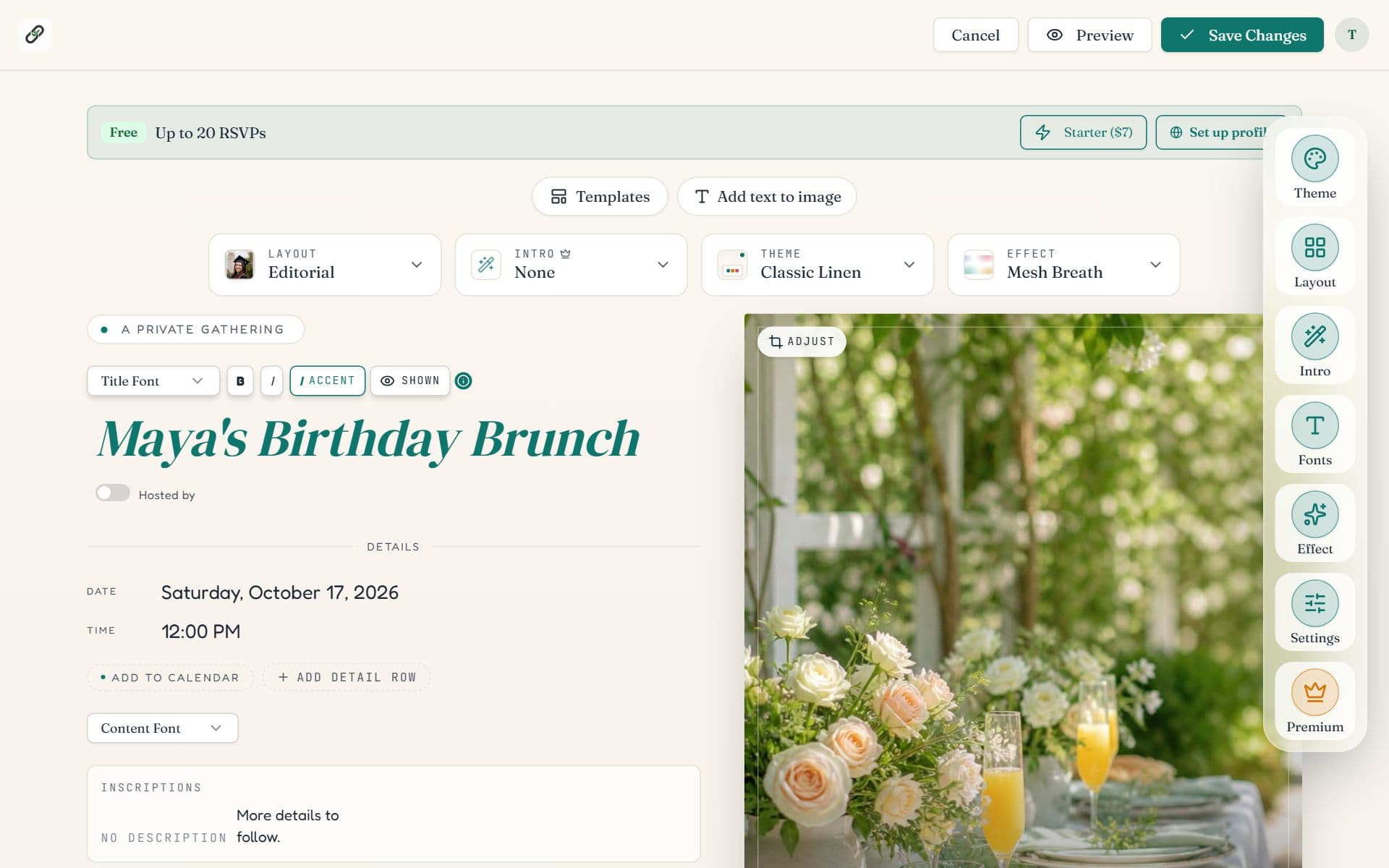
The event editor
What each part of the RSVPlinks editor does: the design pickers, the side rail, on-page editing, guest preview and saving. With labeled screenshots.
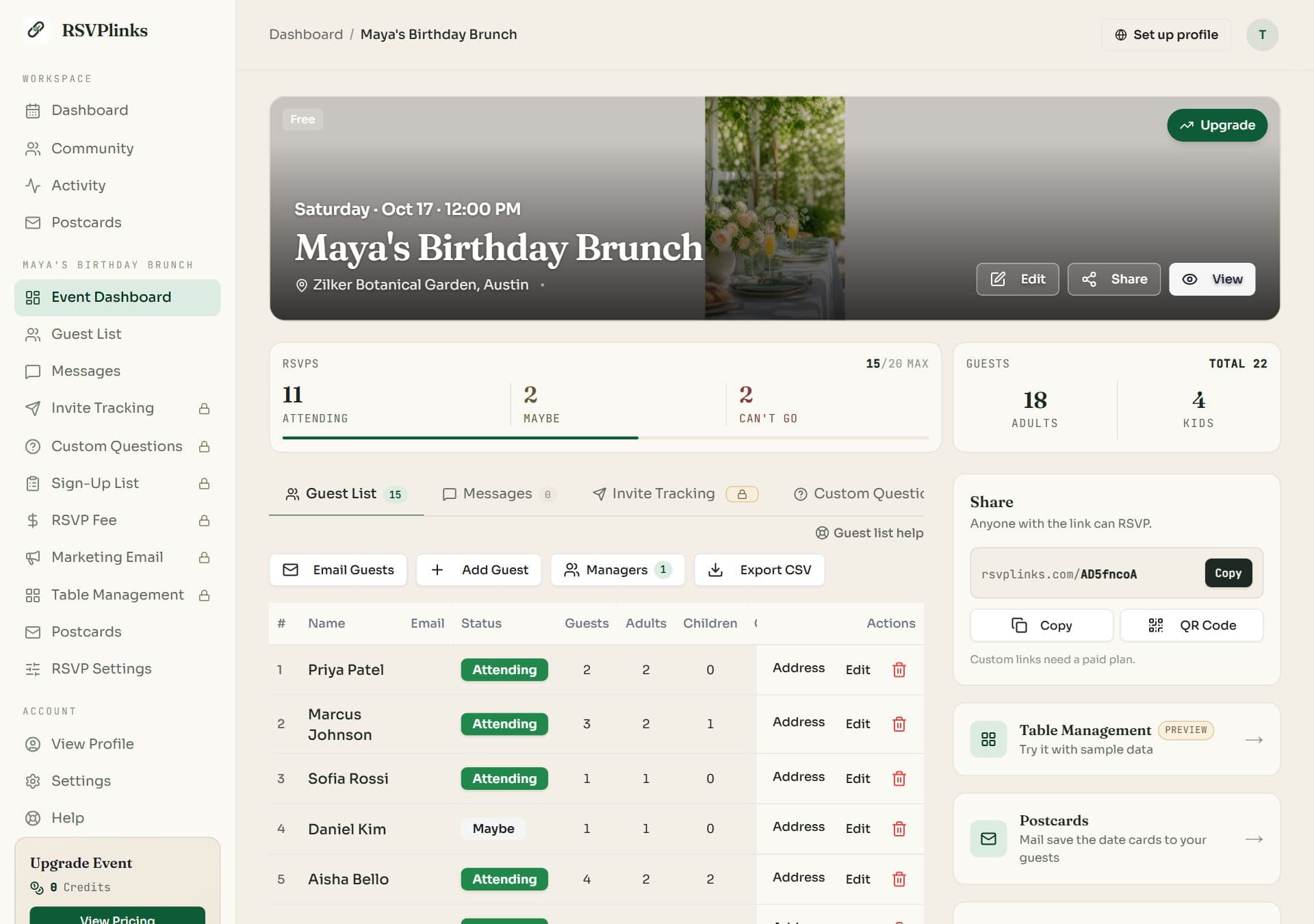
The event dashboard
Read the RSVP counts, work the guest list, add or edit guests by hand, export a CSV, invite co-hosts, and learn what every tab on an event does.
Getting started
From a blank page to a link you can share.
How to create your first event on RSVPlinks
Pick a design, add a title and date, press Create Event and share one link. A step-by-step walkthrough with screenshots of each screen.
- 1. Pick a starting design
- 2. Add the essentials
- 3. Press Create Event
- 4. Share the link
- What a free event includes
A tour of the event editor
What each part of the RSVPlinks editor does: the design pickers, the side rail, on-page editing, guest preview and saving. With labeled screenshots.
- Opening the editor
- How the editor is laid out
- Editing on the page
- The side rail
- Preview as a guest
- Saving and leaving
Design your page
Banners, templates, colors, fonts, effects and the words on the page.
Banners and cover images
The six banner types on RSVPlinks: upload a photo, pick a ready-made banner, generate one with AI, or design a photo invitation with your own text.
- Choose a banner type
- Pick a ready-made banner
- Upload your own photo
- Generate a banner with AI
- Design your own photo invitation
- The image people see when you share
Templates and page layouts
How templates and layouts differ on RSVPlinks, and how to switch between 65 templates and 43 layouts without losing your event details.
- Template or layout: which to change
- Apply a template
- Change only the layout
- The kinds of layout
- Browse templates before you start
Color themes and fonts
Pick from 220 color themes and 41 title fonts, style the title with bold, italic and accent, and pair a content font that reads well.
Open this topicPage effects and intro reveals
Add a moving background such as confetti or snow, and an opening animation that plays before the page. 122 effects and 58 intro reveals.
Open this topicTitle, date, location and description
How to fill in each part of an RSVPlinks event page: title, host line, date and time, location with a map, the description, extra detail rows and labels.
- Title, host and date
- Set the date and time
- Location and description
- Write the description with AI
- Extra details, schedules and labels
RSVPs and sharing
What the form asks, how guests reply and how the invitation gets to them.
The RSVP form and its settings
Choose what your RSVP form asks, reword the reply buttons, set guest limits, a reply-by date and a waitlist, and close or reopen replies.
- Where the settings are
- Choose what the form asks
- Reword the reply buttons
- Guest limits and the waitlist
- Close or reopen replies
- Emails the event sends
Custom questions and sign-up lists
Ask guests about meal choices, dietary needs or song requests on the RSVP form, and let them sign up to bring a dish or take a shift.
Open this topicShare your event: link, QR code and email invites
Copy your event link, download a QR code for printed invitations, set a custom link, send tracked email invites and message your guests.
- Copy the link
- Download a QR code
- Set a custom link
- Send tracked email invites
- Message guests who have replied
For guests: how to RSVP to an invitation
Got an RSVPlinks invitation? How to reply, change your RSVP, add the event to your calendar, pay an RSVP fee and find your table. No account needed.
- Open the invitation
- Send your reply
- Change your reply
- Waitlists, closed forms and fees
- Find your table
- Your details
Dashboard and guests
Finding your way around, the guest list and co-hosts.
The dashboard and the navigation pane
Find your way around RSVPlinks after signing in: the navigation pane, event cards and their menu, the stat cards, the activity feed and the phone layout.
- The dashboard at a glance
- The navigation pane
- Event cards
- Recent activity
- On a phone
- Events you help manage
- How many events you can have
The event dashboard: guest list and tabs
Read the RSVP counts, work the guest list, add or edit guests by hand, export a CSV, invite co-hosts, and learn what every tab on an event does.
- The event dashboard at a glance
- Reading the counts
- What each tab is for
- Work the guest list
- Add or edit a guest
- Invite co-hosts
- The cards on the right
Community, your host profile and polls
What the Community tab is, how to set up a public host profile, publish an event to it, follow other hosts, save events and run a poll.
- What Community is
- Set up your host profile
- Publish an event to your profile
- Follow hosts and save events
- Run a poll
Paid events and add-ons
What paying unlocks, and the tools you can add to an event.
Paid events: plans, add-ons and credits
What a paid RSVPlinks event adds, how the five plans differ, how to upgrade one event from $7, and how credits and add-ons work. No subscription.
- How pricing works
- What a paid event unlocks
- Upgrade an event
- Add-ons
- Credits
- If more guests reply than your plan shows
RSVP Fee: collect payment with RSVPs
Ask guests to pay when they RSVP, by Venmo, Zelle, PayPal, Cash App or cash. Set a flat or per-person price, then approve payments as they arrive.
Open this topicTable Management: build a seating chart
Lay out your room, add tables, seat guests by dragging or automatically, share a find-your-table page with a QR code, and print the seating chart.
- Try it first, free
- The seating editor
- Add tables and lay out the room
- Rename or change a table
- Seat your guests
- Share the find-your-table page
- Print or export the chart
Marketing Email: invite a contact list
Import a list of contacts, write one invitation email, send it to everyone and track who opened it and who replied. Sold in packs of 500 emails.
Open this topicPostcards: mail printed cards to your guests
Design a postcard, add addresses and RSVPlinks prints and mails it to each guest, postage included, from $1.99 a card. Save the dates, invitations and thank-yous.
Open this topic
Your account
Sign-in, settings, billing and emails.
Account settings, sign-in and email preferences
Sign in, reset a password, change your profile, add payment handles, check credits and billing history, choose which emails you get, or delete your account.
- The account menu
- The four sections of Settings
- Sign in and passwords
- Payment handles, credits and billing
- Choose which emails you get
- Delete your account
Didn't find it?
The FAQ has short answers on pricing and guests, the guides cover sharing and wording, and you can always send us a message.