RSVPs and sharing
For guests: how to RSVP to an invitation
You were sent a link to an event. You can read the invitation and reply from any phone or computer, without making an account or installing anything.
Updated
Open the invitation
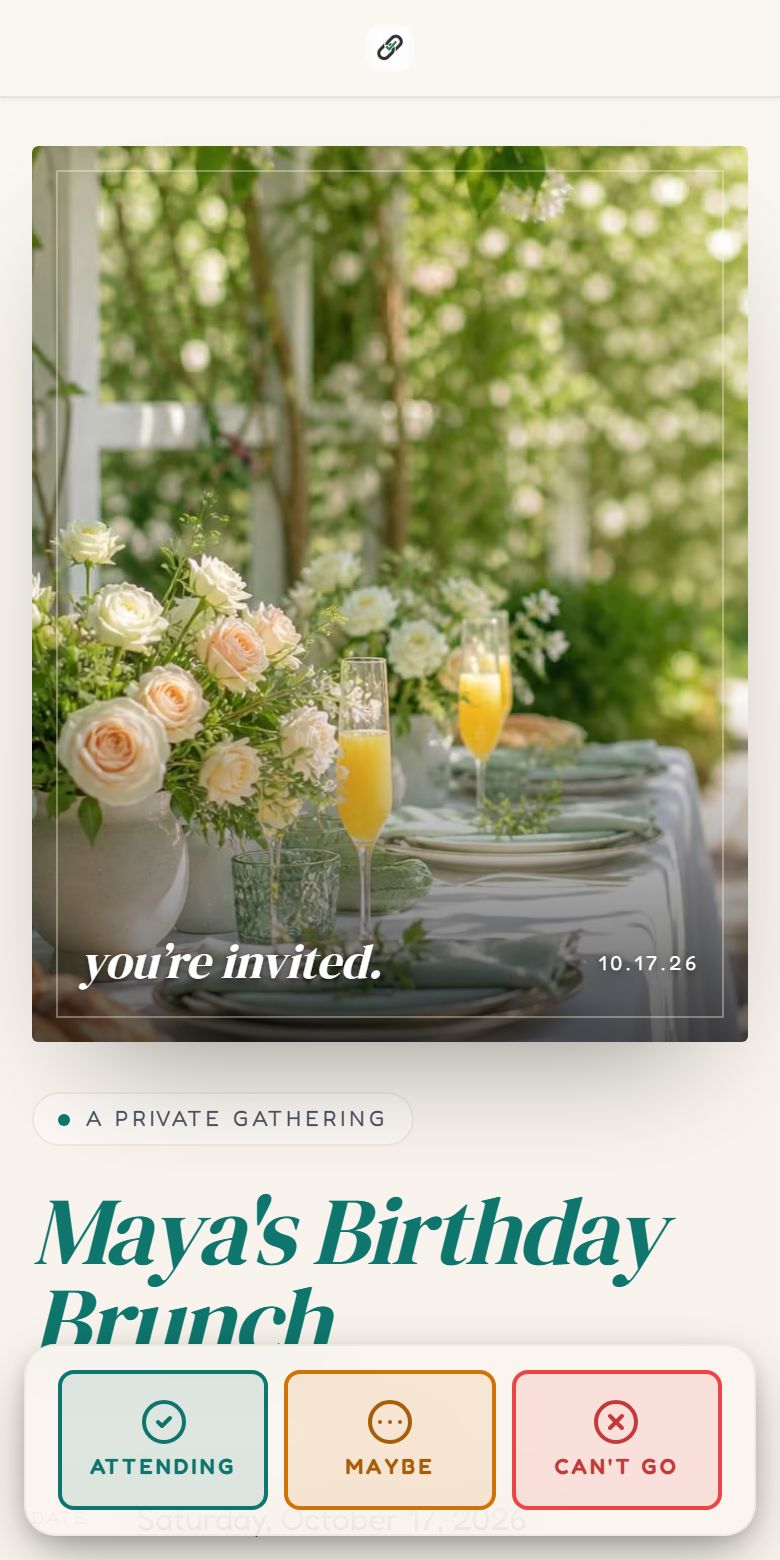
An invitation on a phone. The reply buttons stay at the bottom of the screen.
- Tap the link, or scan the QR code on a printed invitation with your phone's camera.
- Some invitations open with a short animation. Tap Skip to go straight to the page.
- Scroll for the date, time, location and any note from the host. Add to calendar saves the event to your calendar, and the map links open directions.
Send your reply
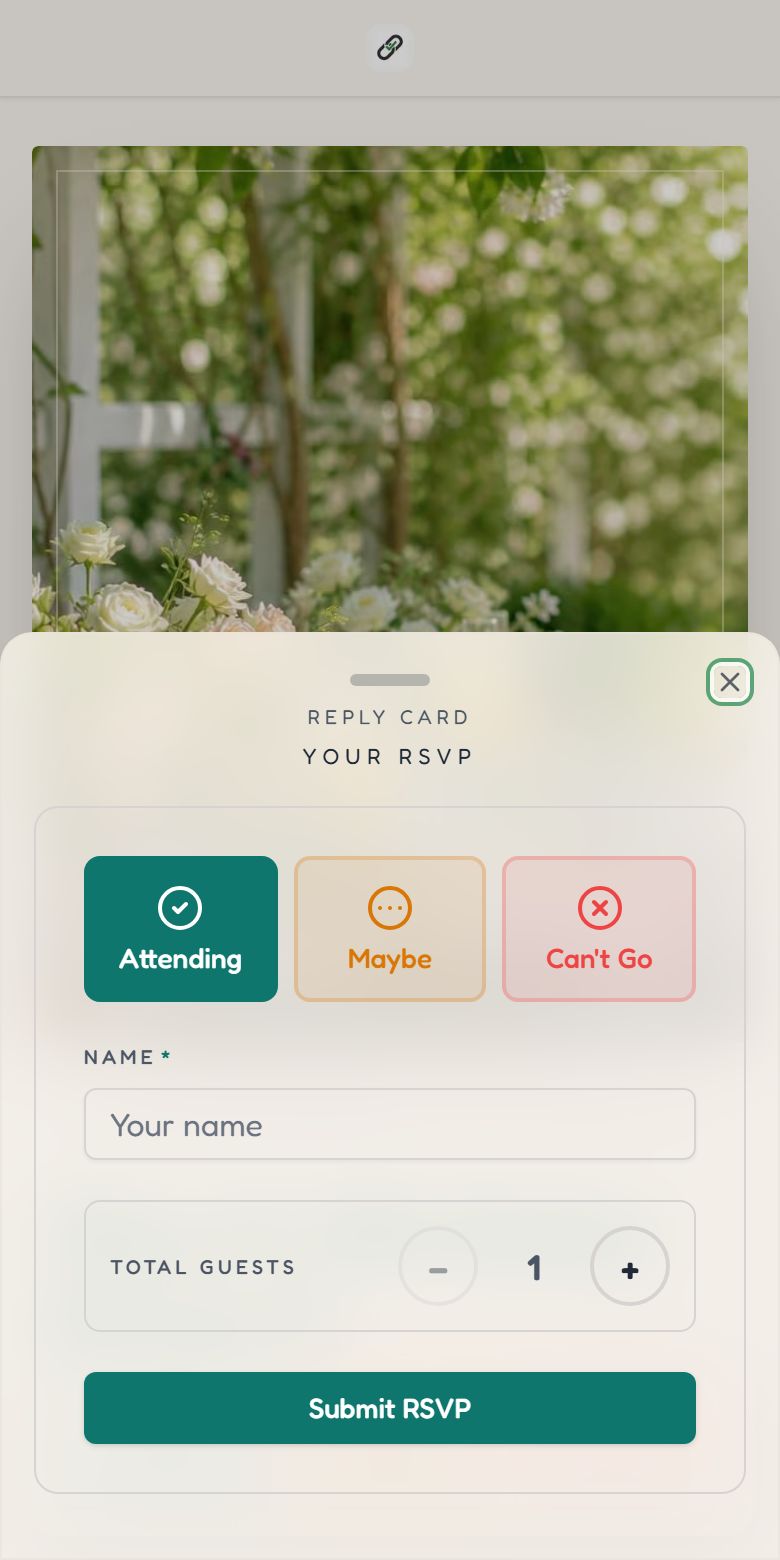
- 1
Tap your answer
Attending, Maybe or Can't Go. The host may have worded the buttons differently.
- 2
Fill in the form
Your name is always asked. The host may also ask for an email, a phone number, how many are coming, or a few questions such as a meal choice.
- 3
Tap Submit RSVP
You see a confirmation on screen. If you gave an email, you may get a confirmation by email too.
Change your reply
- Right after replying, tap Change my RSVP on the confirmation screen.
- Later, open the link again and submit the form with the same email. You are asked whether to Update RSVP or Add another. Choose Update.
- If neither works, message the host. They can edit your reply for you.
Waitlists, closed forms and fees
| You see | It means |
|---|---|
| You're on the waitlist | The event is full. The host can move you to Attending if a place opens. |
| RSVPs closed | The reply-by date has passed, the event is full, or the host has closed replies. Contact the host if you still want to come. |
| Amount due / Pending | The host asks for a fee. Your place is confirmed when they mark your payment received. |
For a fee, the form shows the amount, the ways you can pay (for example Venmo, Zelle, PayPal, Cash App or cash at the door) and where to send it. You pay the host directly in your own payment app; RSVPlinks never takes your card. Venmo, PayPal and Cash App show a QR code or link with the amount filled in. You get an email with a confirmation code once the host approves it.
Find your table
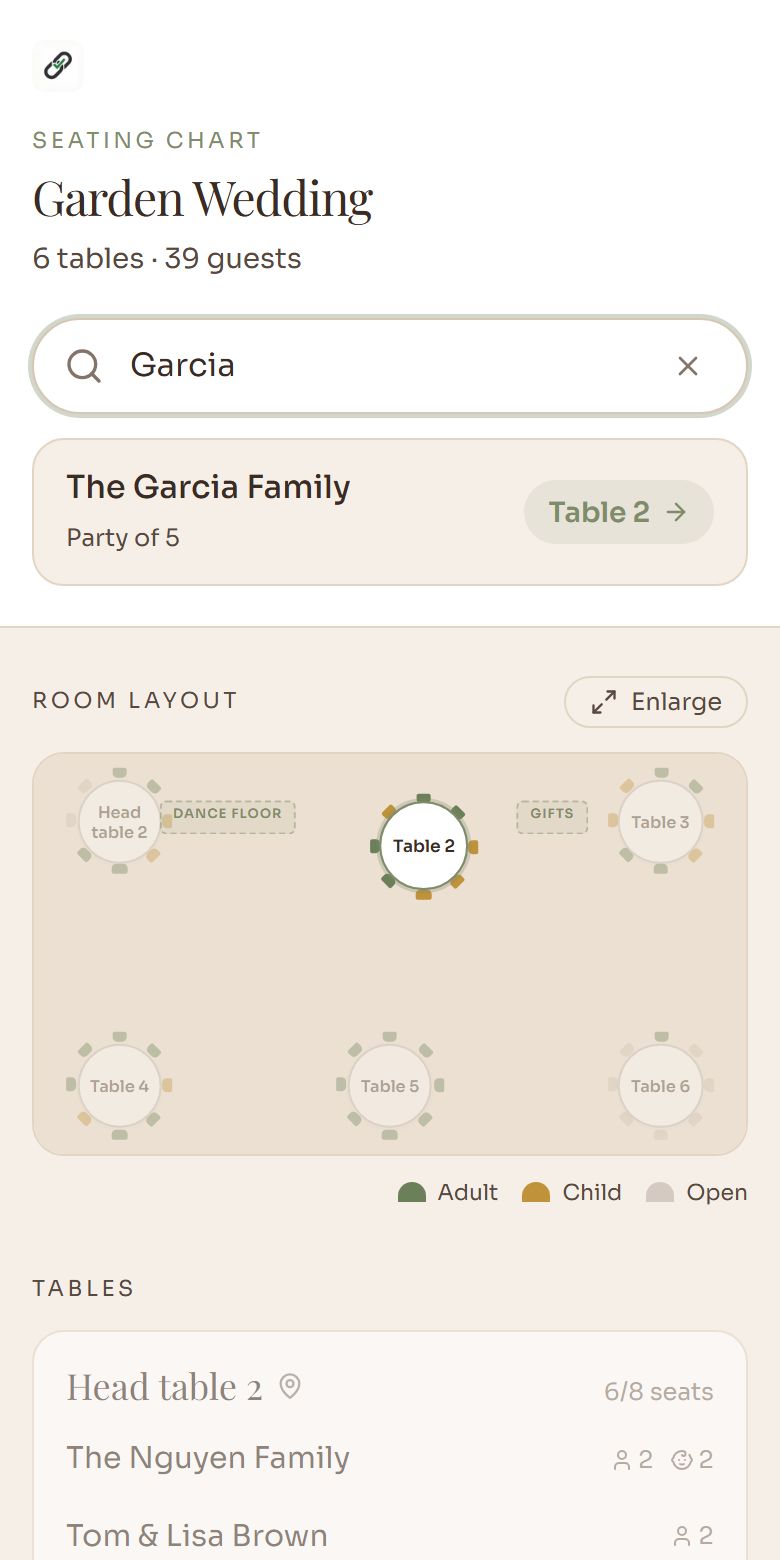
If the host shares a seating link or a QR code at the venue, open it and type your name in Search your name. Your table is shown and highlighted on the room layout. Try just your first or last name if nothing matches.
Your details
- What you enter goes to the host of the event and their co-hosts.
- Other guests cannot see your email, phone, address or answers. If the host shows a guest list on the page, it lists names only.
- Emails about the event have an unsubscribe link at the bottom.
Common questions
- Do I need an account to RSVP?
- No. Open the link, tap your answer, enter your name and submit. No account, password or app.
- How do I change my RSVP?
- Open the invitation link again and submit the form with the same email, then choose Update RSVP. Straight after replying you can also tap Change my RSVP. The host can change it for you as well.
- The form says RSVPs are closed. What can I do?
- The host set a reply-by date, the event is full, or replies were closed by hand. Only the host can reopen the form or add you directly, so contact them.
- Is it safe to pay an RSVP fee?
- You pay the host directly through your own payment app, such as Venmo or Zelle, or in cash. RSVPlinks does not collect or hold the money and never asks for your card on the RSVP form. Pay only hosts you know.
Still stuck?
Check the FAQ for quick answers, or send us a message and a person will reply.