RSVPs and sharing
The RSVP form and its settings
The form is what guests fill in to reply. You decide what it asks, how many people can come, and when replies close. Change it any time, even after replies have started.
Updated
Where the settings are
- In the editor: the switches on the form preview itself, plus Settings and Premium on the side rail.
- On the event dashboard: the RSVP Settings tab, which has the same controls without opening the editor. Press Save Changes when done.
Choose what the form asks
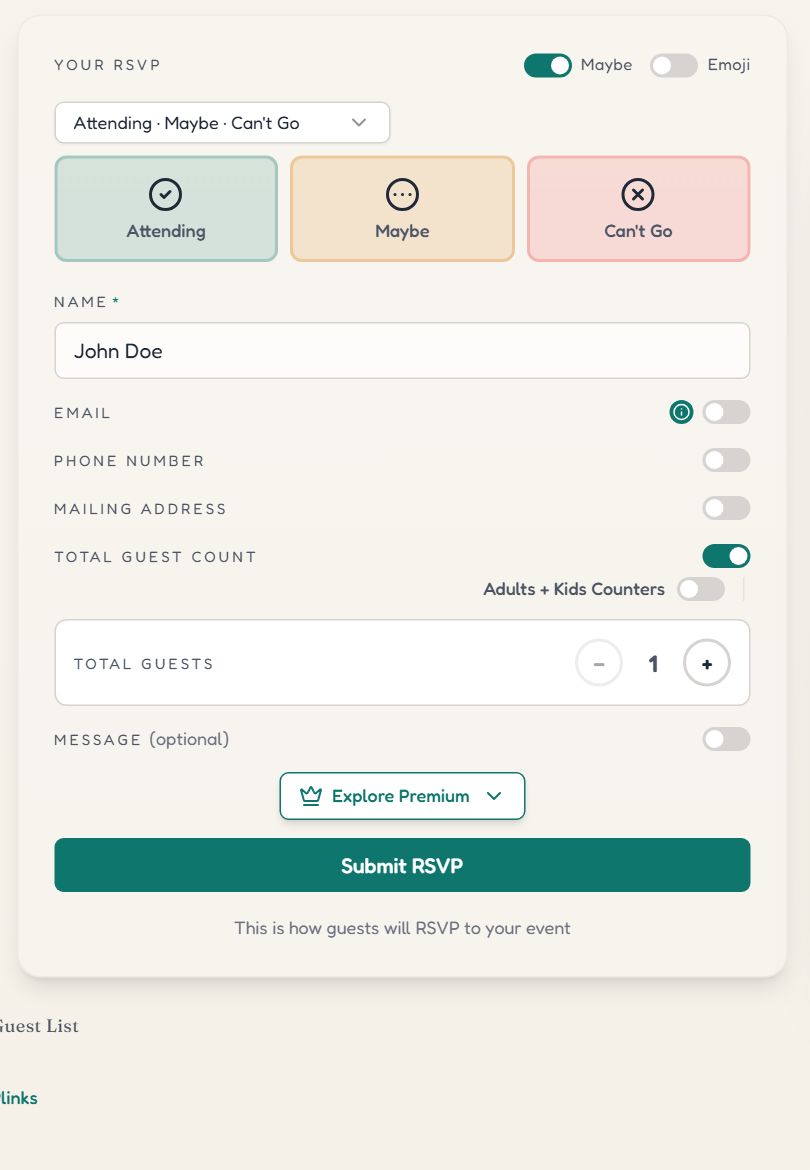
The form preview in the editor. A guest's name is always asked.
- 1Maybe adds a middle reply. Emoji, beside it, puts emoji on the buttons.
- 2Button wording changes what the three buttons say.
- 3Email. Switch on to ask for it, and mark it Required if every guest must give one.
- 4Total Guest Count asks how many are coming. Adults + Kids Counters splits that into two numbers.
- 5Explore Premium opens the paid options: limits, reply-by date, custom questions and more.
| Setting | What guests see |
|---|---|
| Collect emails | An email field. Needed for confirmation and reminder emails, RSVP fees and invite tracking. |
| Collect phone numbers | A phone field, optional or required. |
| Collect mailing address | Street, city, state and ZIP, for postcards. Only you see addresses. |
| Collect guest count | A counter for the size of their party. |
| Allow Maybe | A third reply between yes and no. Guests can update it later. |
| Allow notes | A message box. Notes arrive in the Messages tab of the event dashboard. |
| Show public guest list | The names of guests who are coming, listed on the event page. |
| Use emoji responses | Emoji on the reply buttons, from a preset that suits the occasion. |
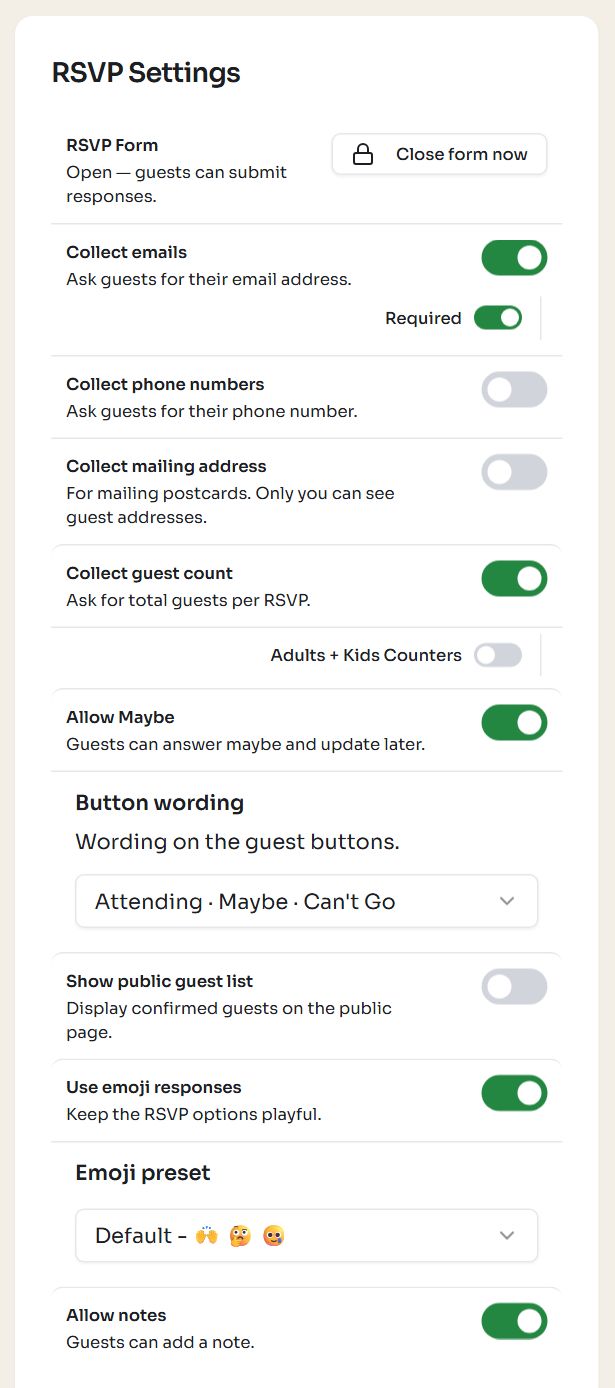
The same settings on the event dashboard's RSVP Settings tab.
- 1Close form now locks the form. See below.
- 2Collect emails, with Required under it.
- 3Collect guest count, with Adults + Kids Counters under it.
- 4Allow Maybe.
- 5Button wording.
- 6Show public guest list.
Guest limits and the waitlist
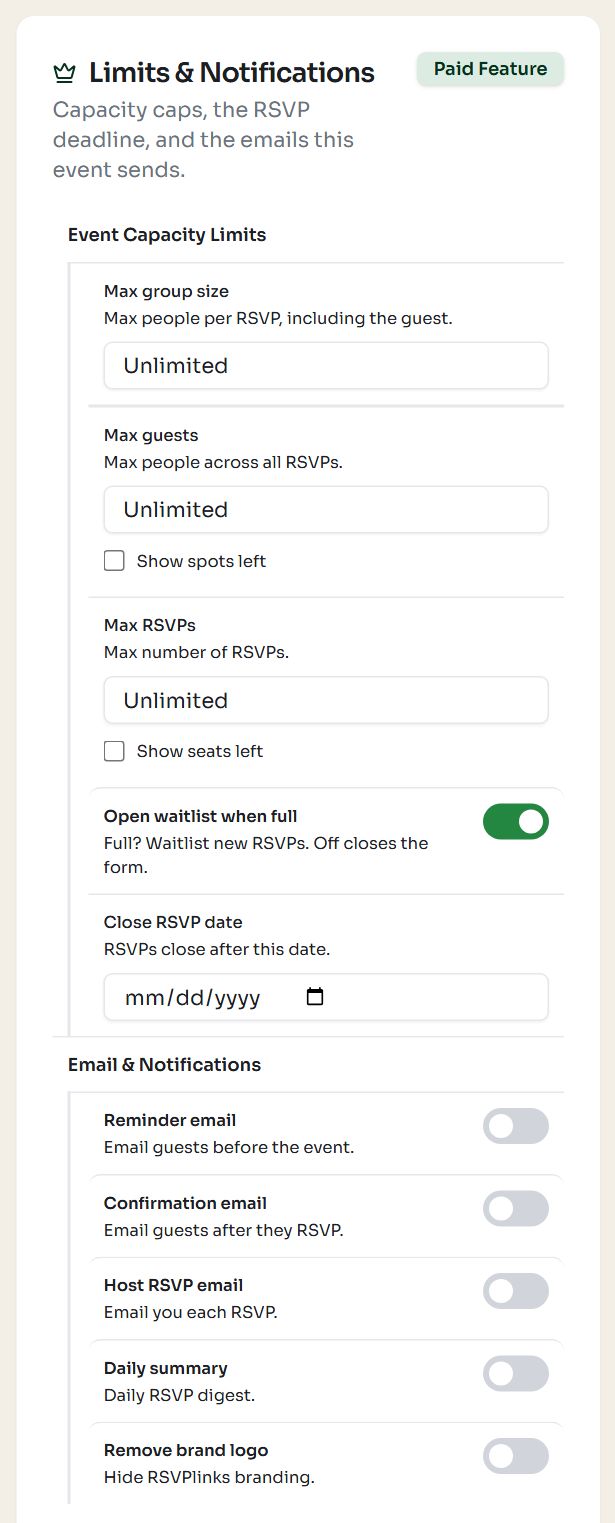
- 1Max group size. The most people one reply can bring, including the guest. Set 2 for “you plus one”.
- 2Max guests. The most people across all replies. Show spots left tells guests how many remain.
- 3Open waitlist when full. On: replies after the limit join a waitlist. Off: the form closes when the event is full.
- 4Close RSVP date. The reply-by date. Guests can reply through the whole of that day.
- 5Reminder email and the other notification switches. See Emails the event sends.
- 6Remove brand logo takes the RSVPlinks mark off your page.
- Max RSVPs counts replies rather than people. Use it when each reply is one household or one team.
- A guest who is waitlisted is told so and appears as Waitlisted in your guest list. Promote them with the arrow on their row. See The event dashboard.
- Raising a limit does not move anyone off the waitlist by itself. You choose who to promote.
- Guests with a payment still pending hold their place and count toward the limit.
Close or reopen replies
A form closes in one of three ways: you press Close form now, the Close RSVP date passes, or the event fills up with the waitlist switched off. Guests can still open the page and read the details; the form is greyed out with a short notice saying why.
To take replies again, press Reopen form in RSVP Settings. If the reply-by date has passed, reopening clears it. If the event is full, raise the limit as well. Close form now is available on free events too.
Emails the event sends
| Who gets it | When | |
|---|---|---|
| Confirmation email | The guest | Right after they reply, with the event details. |
| Reminder email | Guests who have not declined | A number of days before the event. You set Days before. |
| Host RSVP email | You and your co-hosts | Each time someone replies. |
| Daily summary | You and your co-hosts | Once a day, with the day's replies and the running totals. |
Guest emails need Collect emails switched on. Every email carries an unsubscribe link, and your own alerts can be tuned under Account settings.
Common questions
- How do I let guests bring a plus one?
- Switch on Collect guest count so the form asks how many are coming. To cap it, set Max group size to 2 on a paid event. That allows the guest and one more.
- How do I set an RSVP deadline?
- On a paid event, set Close RSVP date in RSVP Settings. Guests can reply through the end of that day, then the form closes with a notice that the reply-by date has passed.
- Can I stop RSVPs without deleting the event?
- Yes. Press Close form now in RSVP Settings. The page stays up and the form is locked. Reopen form brings it back. This works on free events too.
- Can a guest change their RSVP?
- Yes. Right after replying they can press Change my RSVP. Later, they can submit the form again with the same email and choose Update RSVP. You can also edit any reply from your guest list.
- What happens when my event is full?
- With the waitlist on, new replies are added as Waitlisted and you promote them when a place opens. With it off, the form closes and tells guests the event is full.
Still stuck?
Check the FAQ for quick answers, or send us a message and a person will reply.