Dashboard and guests
The event dashboard: guest list and tabs
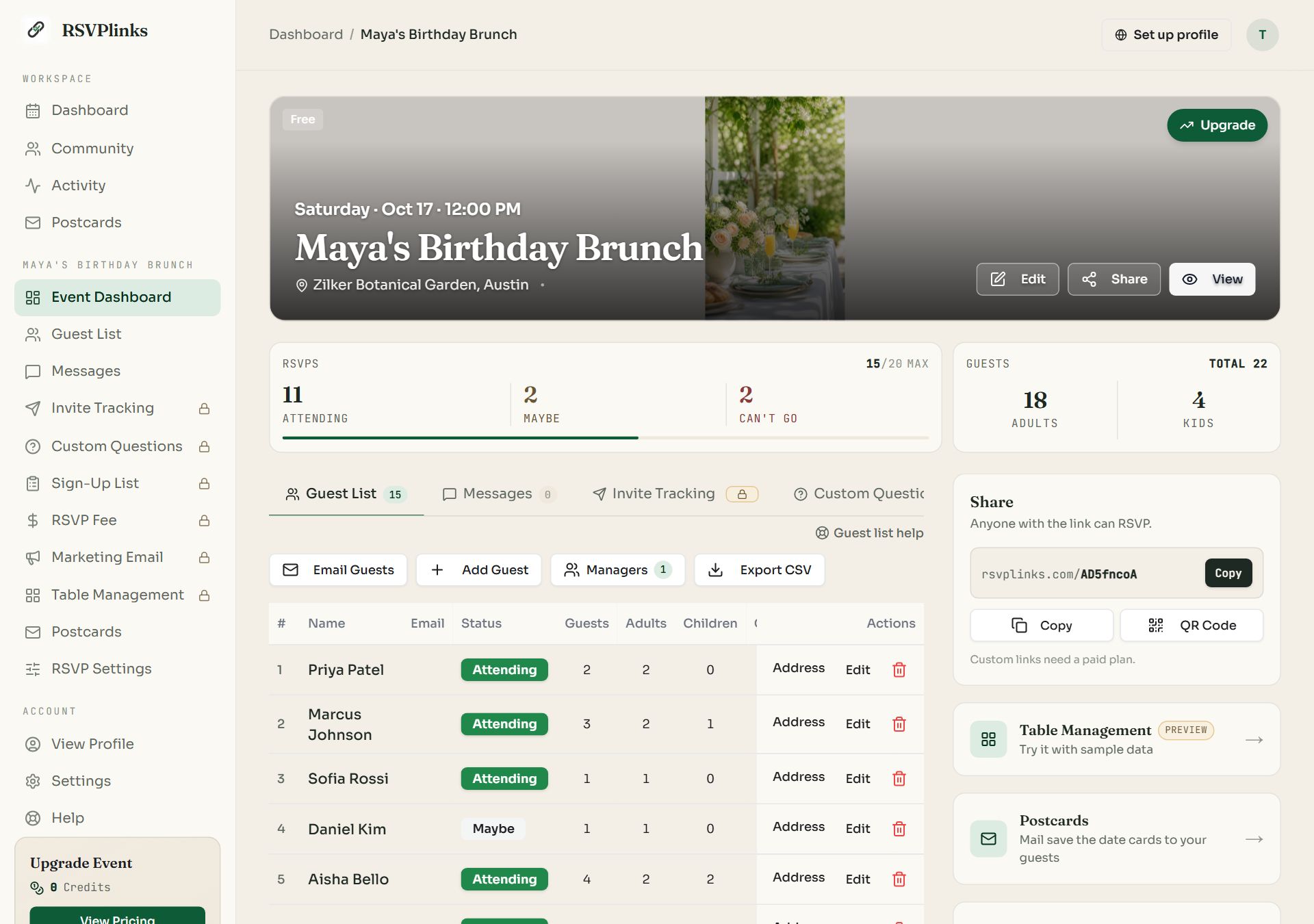
Each event has its own dashboard. It shows who is coming, holds every tool for that event in tabs, and is where you share, upgrade or delete it.
Updated
The event dashboard at a glance
Click an event on your dashboard to open it.
Swipe sideways to see the whole screen, or tap it to enlarge.
- 1Event navigation. Every tab of this event, in the pane on the left.
- 2Edit opens the editor. Share copies the link. View opens the guest page.
- 3RSVPs. Attending, Maybe and Can't go, with the total against your plan's limit.
- 4The tab strip. The same tabs as the pane. Scroll it sideways on a small screen.
- 5Share. The link, a Copy button and the QR code.
Reading the counts
- RSVPs counts replies: Attending, Maybe and Can't go. The corner shows replies against your plan's limit, for example 15/20.
- Guests counts people: adults, kids and the total. One reply for a family of four is 1 RSVP and 4 guests.
- Waitlist and Pending pay appear when you use a guest limit or an RSVP fee and someone is in that state.
What each tab is for
| Tab | What it holds | Plan |
|---|---|---|
| Guest List | Everyone who replied, plus guests you add by hand. | Free |
| Messages | Notes guests left with their RSVP. | Free |
| Invite Tracking | Email invitations and who opened them. More | Paid |
| Custom Questions | Your own questions and the answers. More | Paid |
| Sign-Up List | Items or shifts guests can claim. More | Paid |
| RSVP Fee | Collect a payment with each RSVP. More | Add-on |
| Marketing Emails | Invitation emails to a contact list. More | Add-on |
| Postcards | Printed cards mailed to this event's guests. More | Per card |
| RSVP Settings | What the form asks, limits and notification emails. More | Free, limits paid |
Table Management opens from the navigation pane and from its card on the right. More
Work the guest list
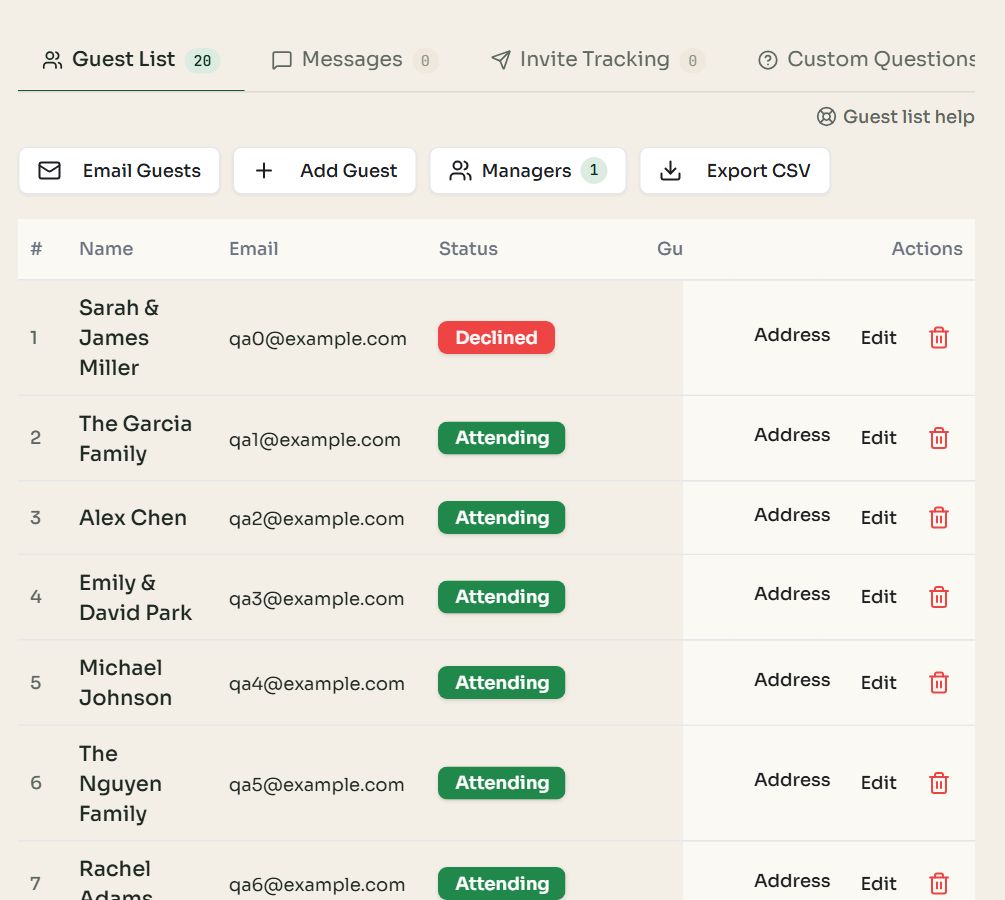
- 1Email Guests sends a message to guests who gave an email. Paid events.
- 2Add Guest adds someone yourself, for replies you got by phone or in person.
- 3Managers invites co-hosts.
- 4Export CSV downloads the list as a spreadsheet.
- 5Row actions. Address, Edit and delete for that guest.
| Status | Meaning |
|---|---|
| Attending | Coming. |
| Maybe | Not sure yet. They can update later. |
| Declined | Not coming. |
| Waitlisted | Replied after the event filled. An arrow on the row promotes them to Attending. |
| Pending Payment | Owes an RSVP fee. A tick on the row approves the payment. |
Add or edit a guest
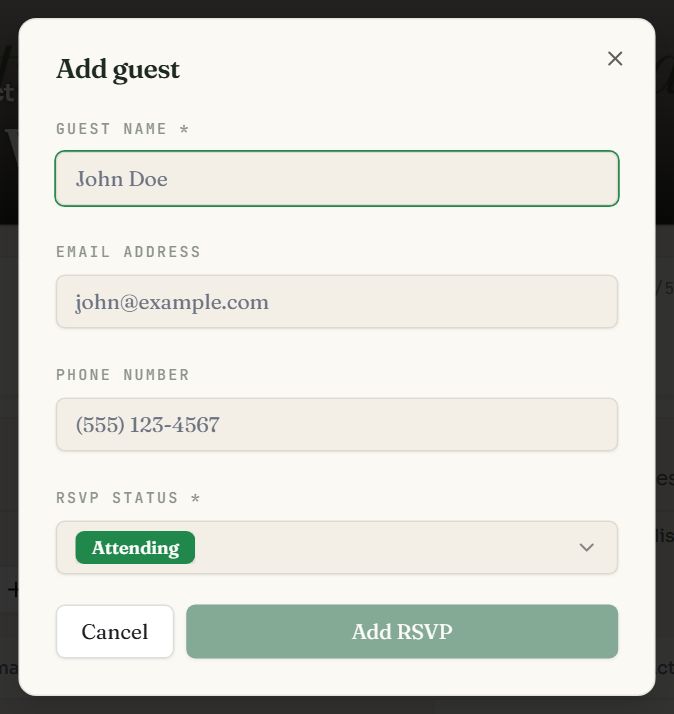
Add Guest. Only the name and status are required.
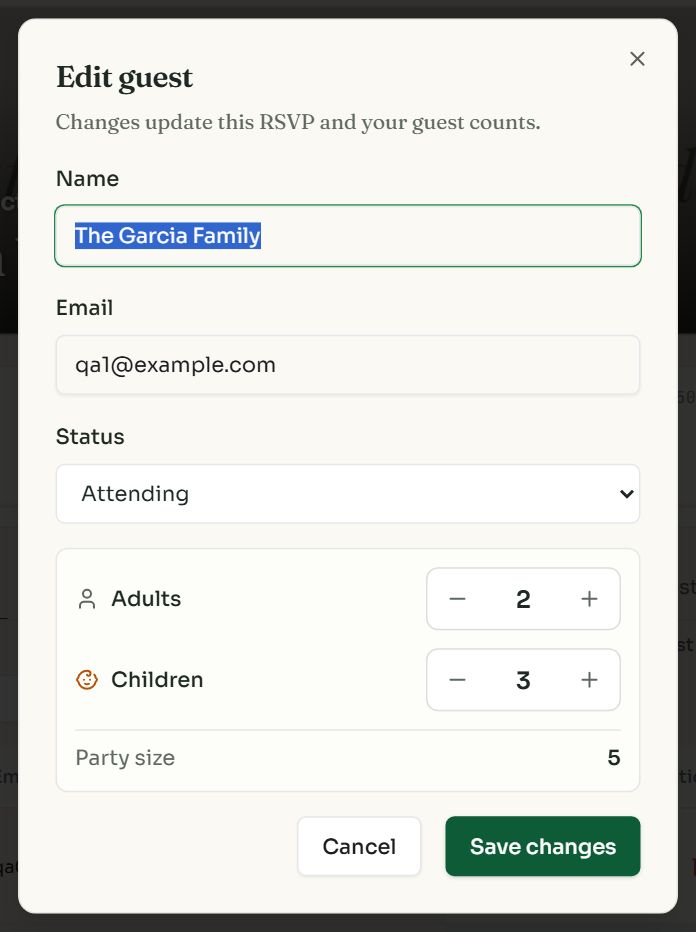
Edit changes a reply and updates your counts.
- Guests you add by hand are not stopped by a guest limit or a closed form. Those apply to the public form only.
- Address stores a mailing address for postcards. Only you and co-hosts with edit access see it.
- The bin deletes the reply after you confirm.
- The CSV export has a row per reply with name, email, status, phone, address, guest counts, message, date, sign-up item and a column for each custom question.
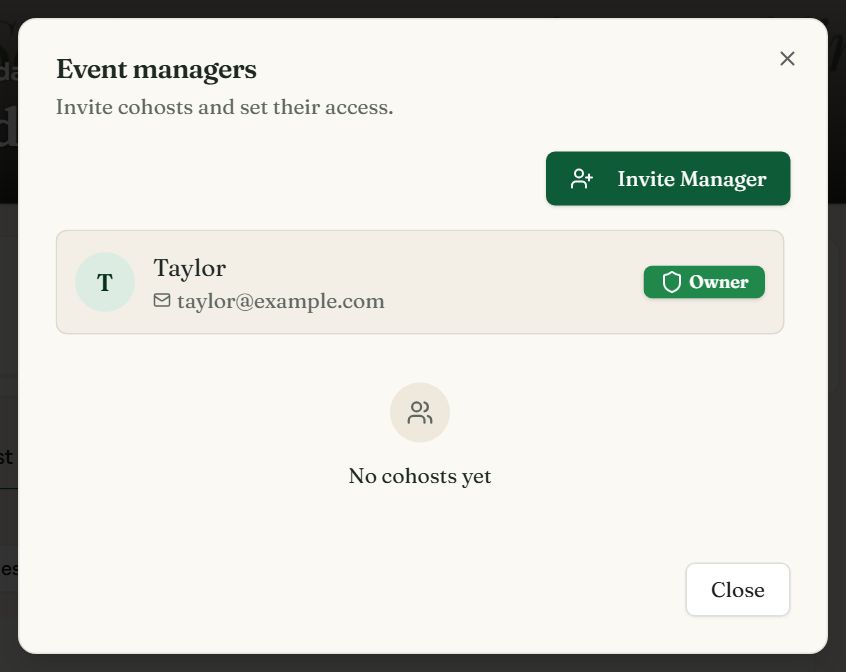
Invite co-hosts
- 1
Press Managers, then Invite Manager
Enter the person's email address.
- 2
Choose their access
Editor can edit the event and manage guests. Viewer can only see the guest list.
- 3
They accept
They get an email and an invitation on their own dashboard. Once accepted, the event appears for them under Events you manage.
Only the owner can change the plan, buy add-ons, publish the event to a profile or delete it. Remove a manager from the same dialog at any time.
The cards on the right
- Share: the link, Copy and QR Code. On a paid event the link is editable. More
- Table Management: opens the seating chart. It says Preview until you unlock it.
- Postcards: starts a card for this event's guests.
- Upgrade this event: the plan slider and add-ons. More
- Delete Event is at the bottom of the upgrade card, for the owner only.
Common questions
- How do I export my guest list?
- Open the event, stay on the Guest List tab and press Export CSV. The file opens in Excel, Numbers or Google Sheets and includes custom question answers. Export is free.
- Can I add a guest who replied by text or phone?
- Yes. Press Add Guest on the Guest List tab, enter their name, choose Attending, Maybe or Declined, and set how many are coming.
- Why are some RSVPs hidden?
- The event has more replies than its plan shows. They are saved, not lost. Upgrade the event to a plan with a higher limit and they appear at once.
- What is the difference between RSVPs and Guests?
- RSVPs counts replies. Guests counts people. A couple replying together is one RSVP and two guests.
- Can someone else help manage my event?
- Yes, on a paid event. Press Managers and invite them by email as an Editor or a Viewer. They sign in with their own account.
Still stuck?
Check the FAQ for quick answers, or send us a message and a person will reply.