Your account
Account settings, sign-in and email preferences
Settings holds everything about you rather than about one event: profile, password, payment handles, credits and emails.
Updated
The account menu
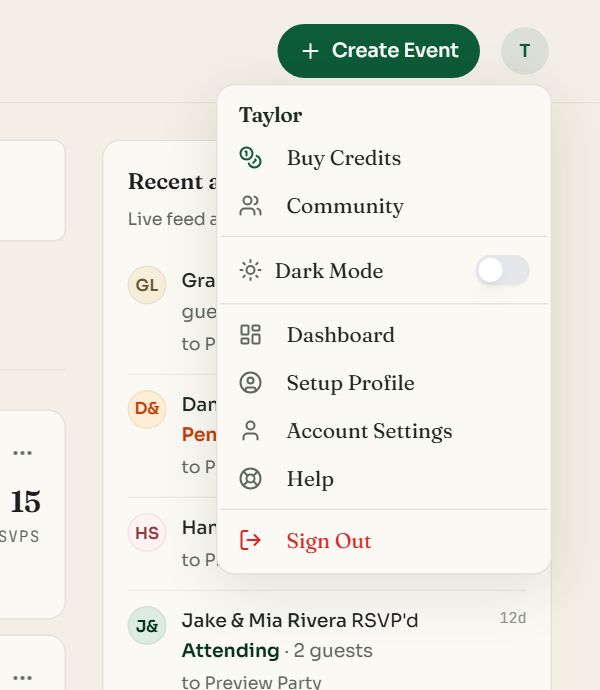
Click your initial at the top right of any signed-in page.
- Credits shows your balance, or Buy Credits when it is empty.
- Dark Mode switches the dashboard to a dark look. Your event pages follow their own color theme.
- Account Settings opens Settings. Sign Out ends the session on this device.
The four sections of Settings
| Section | What is there |
|---|---|
| Profile | Photo, display name, bio, social links and your public profile switches. More |
| Account | Your sign-in email, Change Password and account deletion. |
| Billing | Payment handles for RSVP fees, your credit balance and billing history. |
| Notifications | The link to your email preferences. |
On a computer the sections are listed on the left. On a phone they are tabs across the top, and Me in the bottom bar opens Settings.
Sign in and passwords
- Sign in with an email and password, or with Google.
- A new email account is confirmed with a six-digit code sent to that address. Type the code on the screen that asks for it. Codes expire, so use the newest email.
- Forgot your password? Use the reset link on the sign-in page. You get a six-digit code, then enter the code and a new password on one screen.
- To change a password while signed in, open Settings, Account, Change Password.
- The sign-in email cannot be changed from Settings. Contact us if you need to move to another address.
Payment handles, credits and billing
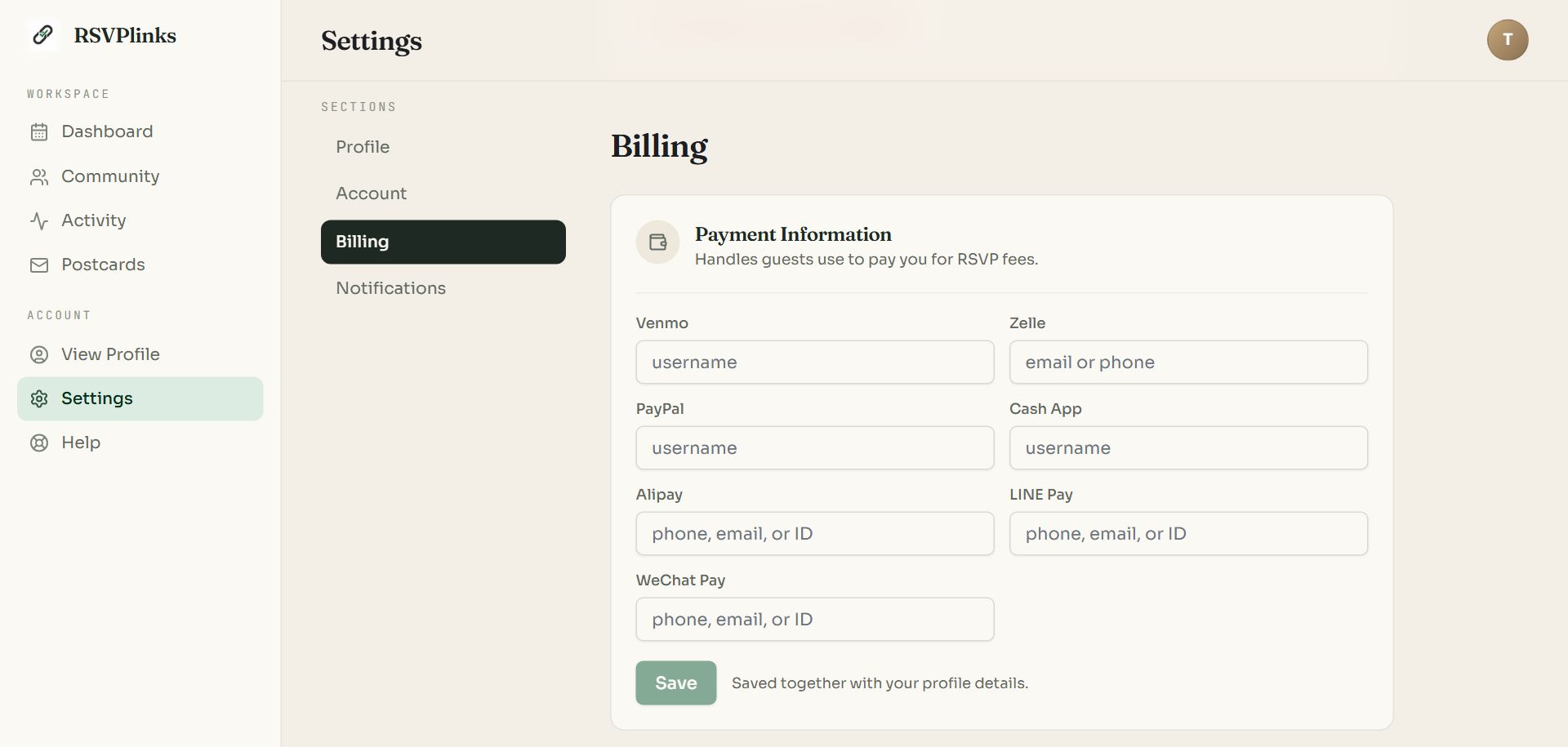
Swipe sideways to see the whole screen, or tap it to enlarge.
- 1Payment Information. The usernames guests use to pay you an RSVP fee.
- 2Save stores them.
- Credits shows your balance and Buy More Credits. Credits never expire. More
- Billing History lists your purchases. Press Load Billing History to see them. A receipt is also emailed after each purchase.
- Every purchase is one-time. There are no subscriptions to cancel: a plan ($7 to $39) belongs to one event.
Choose which emails you get
Open Settings, Notifications, Manage email preferences to choose which kinds of email you get: RSVP alerts, summaries, reminders and product news. Per-event alerts (an email for each RSVP, the daily summary) are also set on each paid event under RSVP Settings.
Every email from RSVPlinks has an unsubscribe link at the bottom. Guests can use it too; clicking it shows a confirm button, so a mail scanner cannot unsubscribe someone by accident.
Delete your account
Open Settings, Account, and press Request account deletion. We then permanently delete your account, your events and their guest data, and email you when it is done. This cannot be undone, so export any guest list you want to keep first.
Common questions
- I did not get my confirmation code. What now?
- Check your spam folder, wait a couple of minutes, then request a new code and use the newest email. If you signed up with a work address, its mail filter may be holding the message.
- Can I change the email on my account?
- Not from Settings. Contact us and we will help you move to another address.
- Is RSVPlinks a subscription?
- No. There is no monthly fee. You pay once per event, from $7, or buy credits to use on any event. Free events stay free.
- How do I stop emails from RSVPlinks?
- Use the unsubscribe link at the bottom of any email, or open Settings, Notifications, Manage email preferences to choose which kinds you want.
Still stuck?
Check the FAQ for quick answers, or send us a message and a person will reply.