Dashboard and guests
Community, your host profile and polls
Community is an optional feed. It shows events and polls from hosts you follow, and your followers see the events you choose to publish. Nothing is shared unless you publish it.
Updated
What Community is
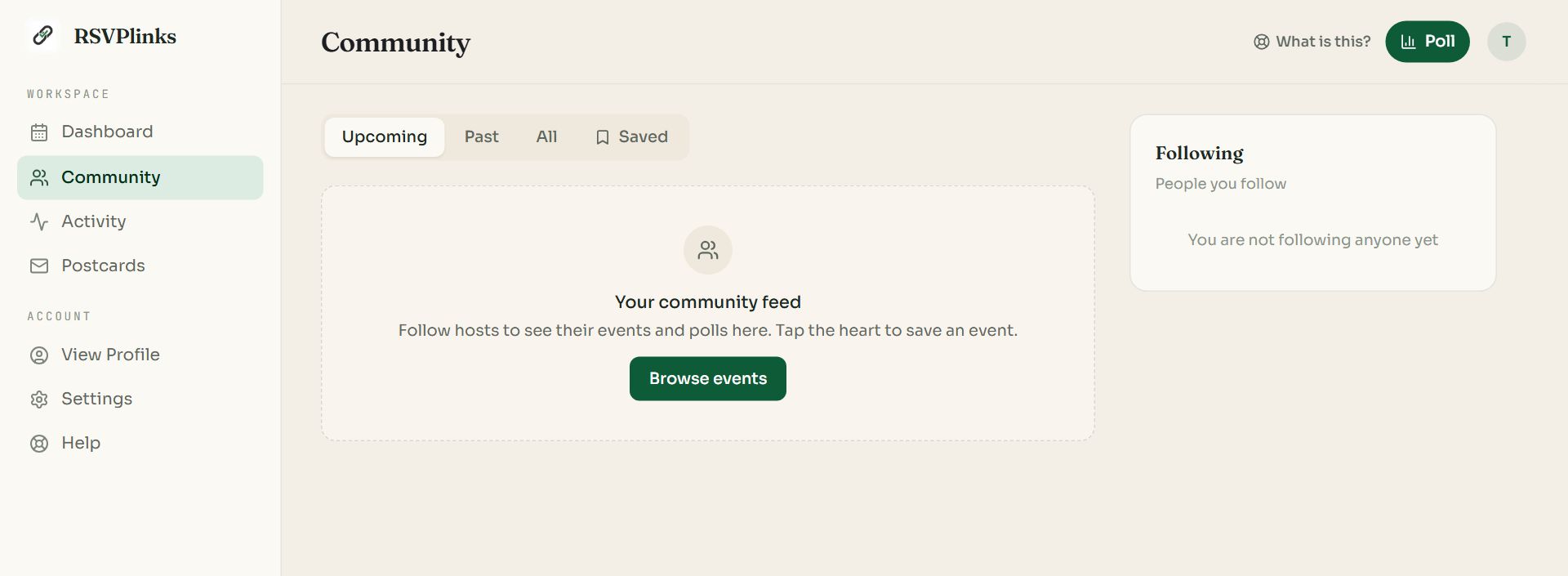
Swipe sideways to see the whole screen, or tap it to enlarge.
- 1Community in the navigation pane.
- 2Poll asks your followers a question.
- 3Saved lists events you marked with the heart.
- 4Following. The hosts you follow.
- The feed holds published events and polls from hosts you follow, plus your own.
- Upcoming, Past and All filter events by date.
- On an event in the feed, RSVP opens its page and the heart saves it.
- The feed is empty until you follow someone or publish an event. That is normal for a new account.
Set up your host profile
Your profile is a public page at rsvplinks.com/u/your-name. Open Settings, then Profile.
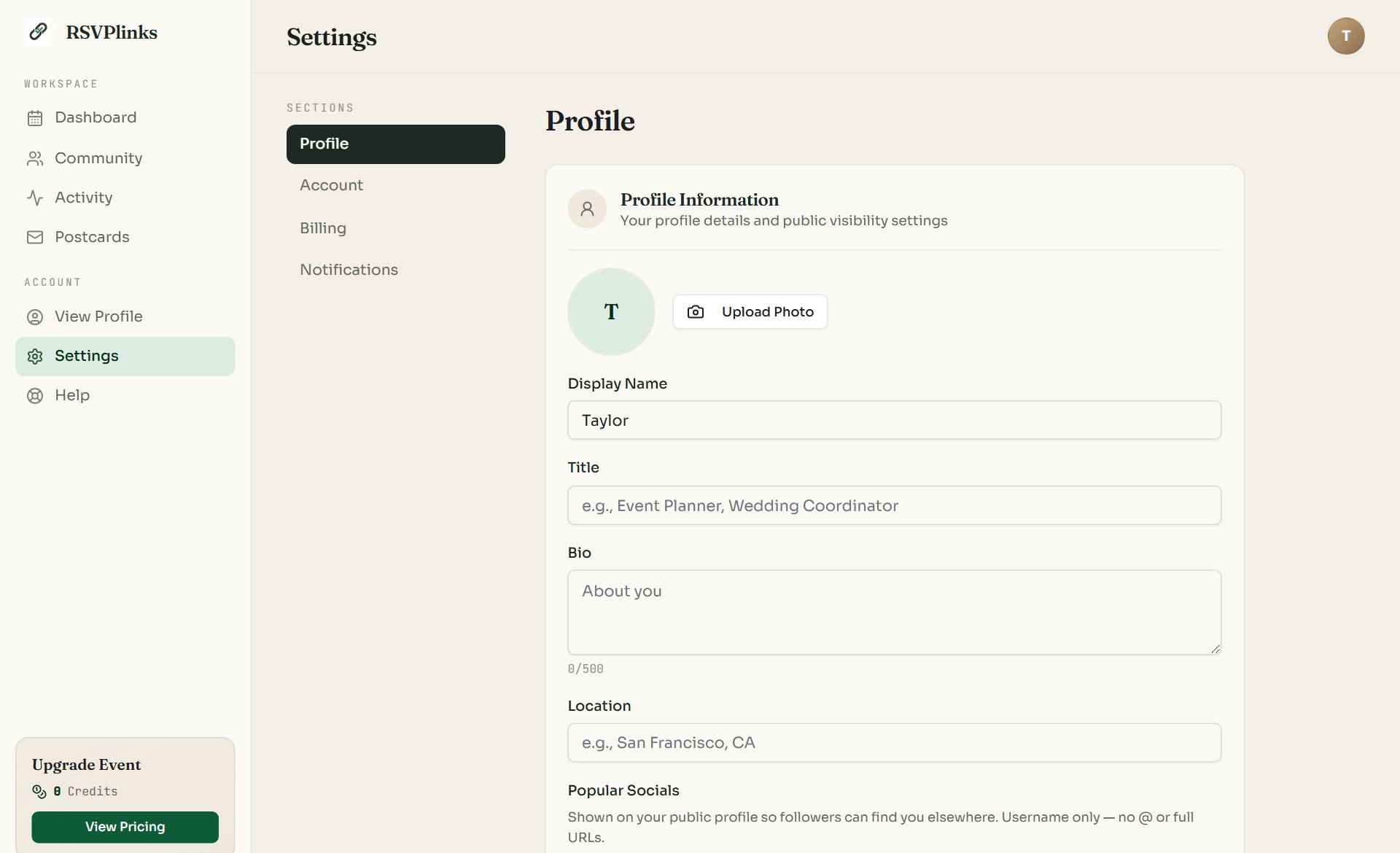
Swipe sideways to see the whole screen, or tap it to enlarge.
- 1Profile in the Sections list.
- 2Upload Photo adds your picture. Adjust its position afterwards.
- 3Display Name, then a title, a short bio, a location and your social usernames.
| Switch | What it does |
|---|---|
| Public profile | Makes your page visible to anyone with its link. |
| Allow non-followers to view your events | Shows your published events to every visitor, not only followers. |
| Email me when someone follows me | Sends you a note for each new follower. |
Choose your profile link (3 to 30 lowercase letters, numbers and hyphens) and press Save Profile. Pick carefully: the link can be changed only once a day.
Publish an event to your profile
- 1
Open the event's dashboard
Only the event's owner sees the publish button.
- 2
Press Publish to Profile
It is at the top right. If you have no profile yet, the button reads Set up profile and takes you to Settings first.
- 3
Confirm
The event is added to your profile and to your followers' feeds, and your followers are emailed.
To take it back, press Make it Private on the same button. The event's own link keeps working either way.
Follow hosts and save events
- Open a host's profile and press Follow. Their published events and polls then appear in your feed.
- Tap the heart on an event to keep it under Saved.
- A profile set to private shows only the host's name until you follow them.
Run a poll
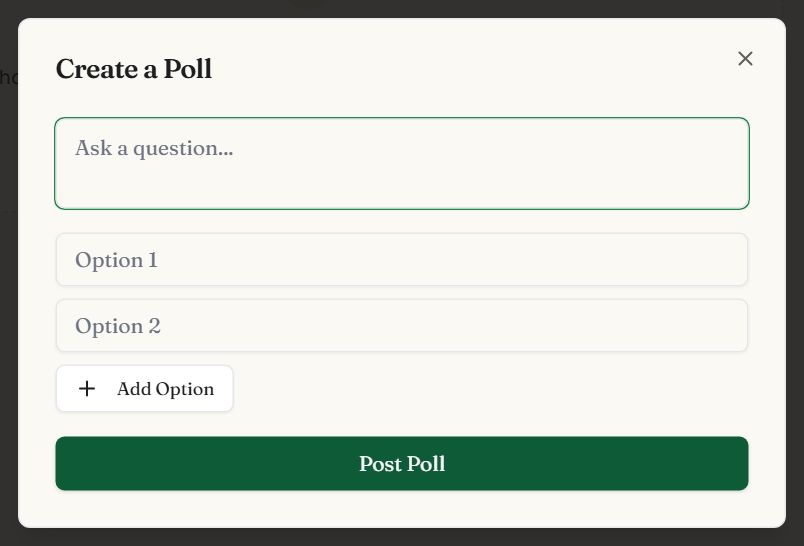
Press Poll on the Community page, type a question (up to 280 characters) and two to six options, then Post Poll. Your followers see it in their feed and tap an option to vote. Results show as percentages once someone has voted. Use it to settle a date, a venue or a theme before you send invitations.
Common questions
- Is my event public?
- No. Only people with the link can open it. An event is listed on your profile and in Community only if you press Publish to Profile, and you can make it private again.
- Do I have to use Community?
- No. It is optional. You can host events, collect RSVPs and use every other feature without a profile or followers.
- Why is my Community feed empty?
- The feed shows events and polls from hosts you follow and events you have published. Follow a host or publish one of your events to fill it.
- Who can vote in my poll?
- People who follow you see the poll in their Community feed and can vote once.
Still stuck?
Check the FAQ for quick answers, or send us a message and a person will reply.