Dashboard and guests
The dashboard and the navigation pane
The dashboard is the first screen after you sign in. It lists every event you host or help manage, with a navigation pane down the left side.
Updated
The dashboard at a glance
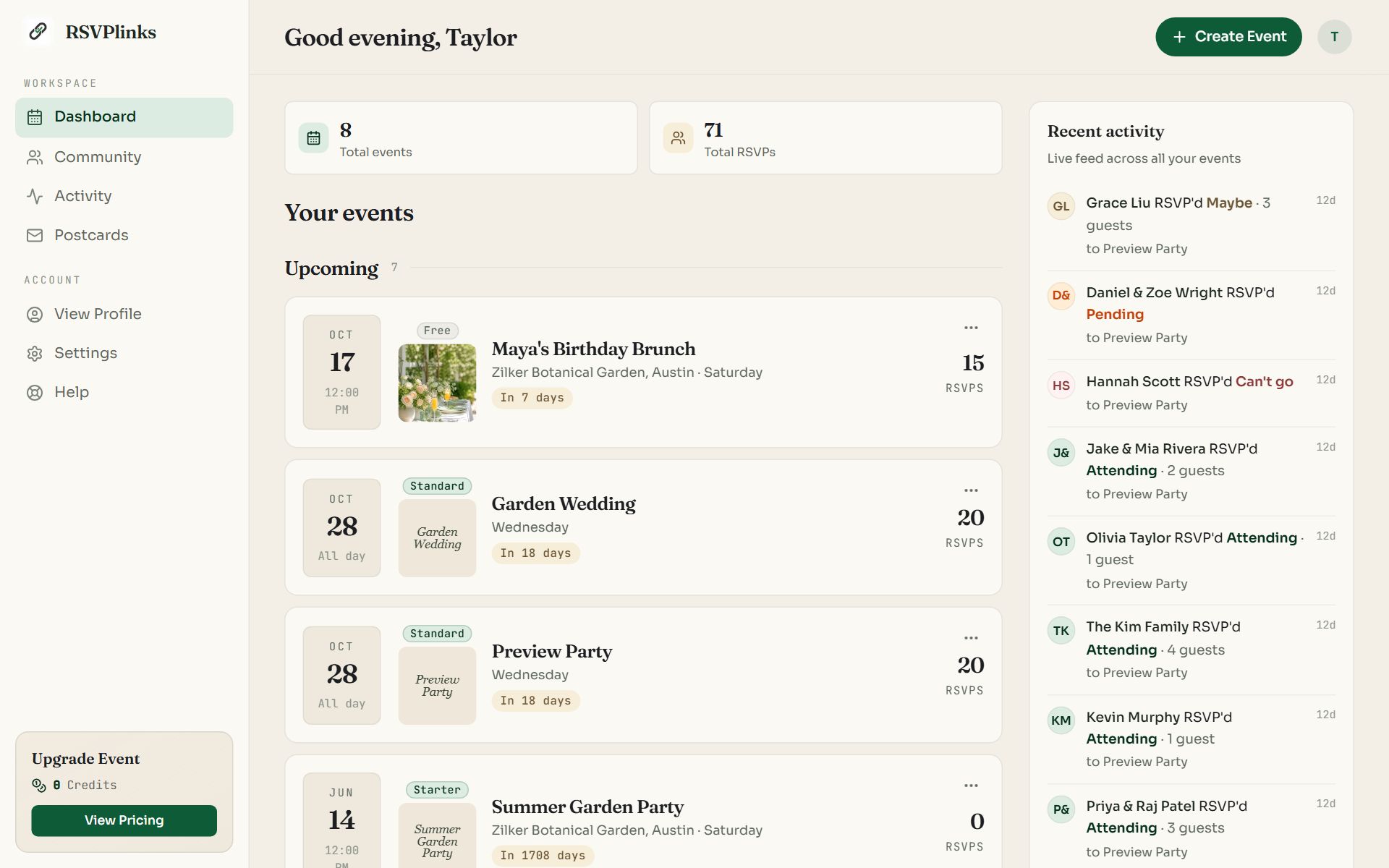
Swipe sideways to see the whole screen, or tap it to enlarge.
- 1The navigation pane. Dashboard, Community, Activity and Postcards.
- 2Stat cards. Total events and total RSVPs across your account.
- 3An event card. Click it to open that event's dashboard.
- 4Create Event starts a new event.
- 5Upgrade Event. Your credit balance and a shortcut to pricing.
Event cards
Events are grouped as Upcoming and Past. Each card shows the date and time, the plan (Free, Starter and so on), the cover, the title, the location and weekday, how soon it is, and the number of RSVPs.
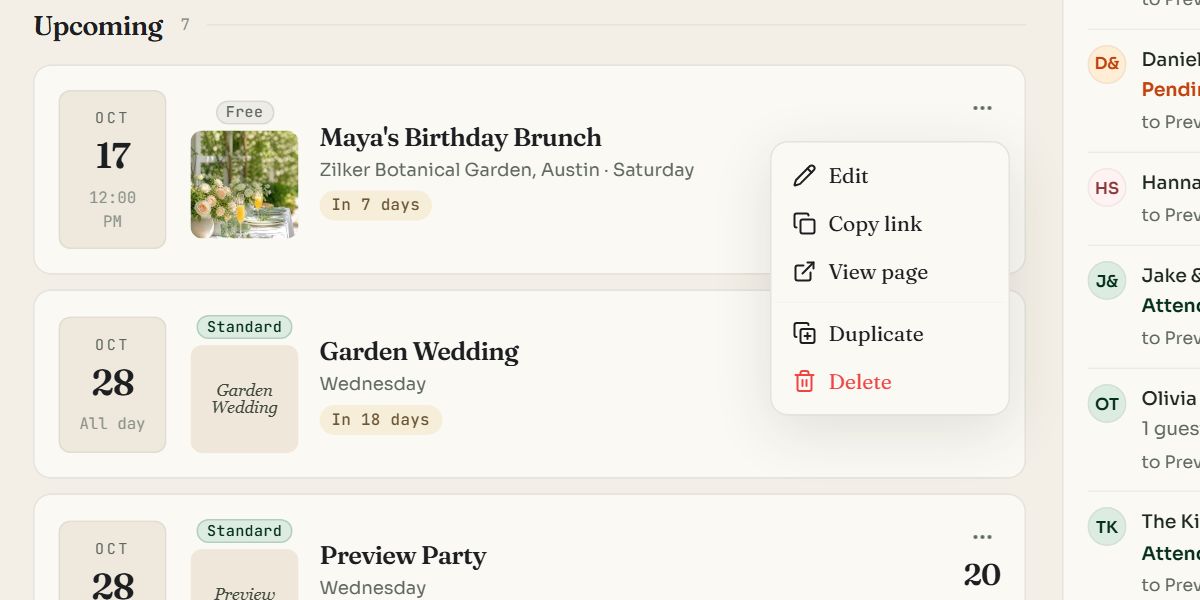
- 1The event menu. Click the three dots at the right of a card.
| Menu item | What it does |
|---|---|
| Edit | Opens the event in the editor. |
| Copy link | Copies the guest link to your clipboard. |
| View page | Opens the page as guests see it, in a new tab. |
| Duplicate | Makes a new event with the same details, design, settings and questions. You pick the new date. RSVPs are not copied, and the copy starts on the Free plan. |
| Delete | Removes the event with all its RSVPs, questions and images. This cannot be undone. |
Recent activity
On a wide screen, Recent activity runs down the right of the dashboard. Activity in the navigation pane opens the full list.
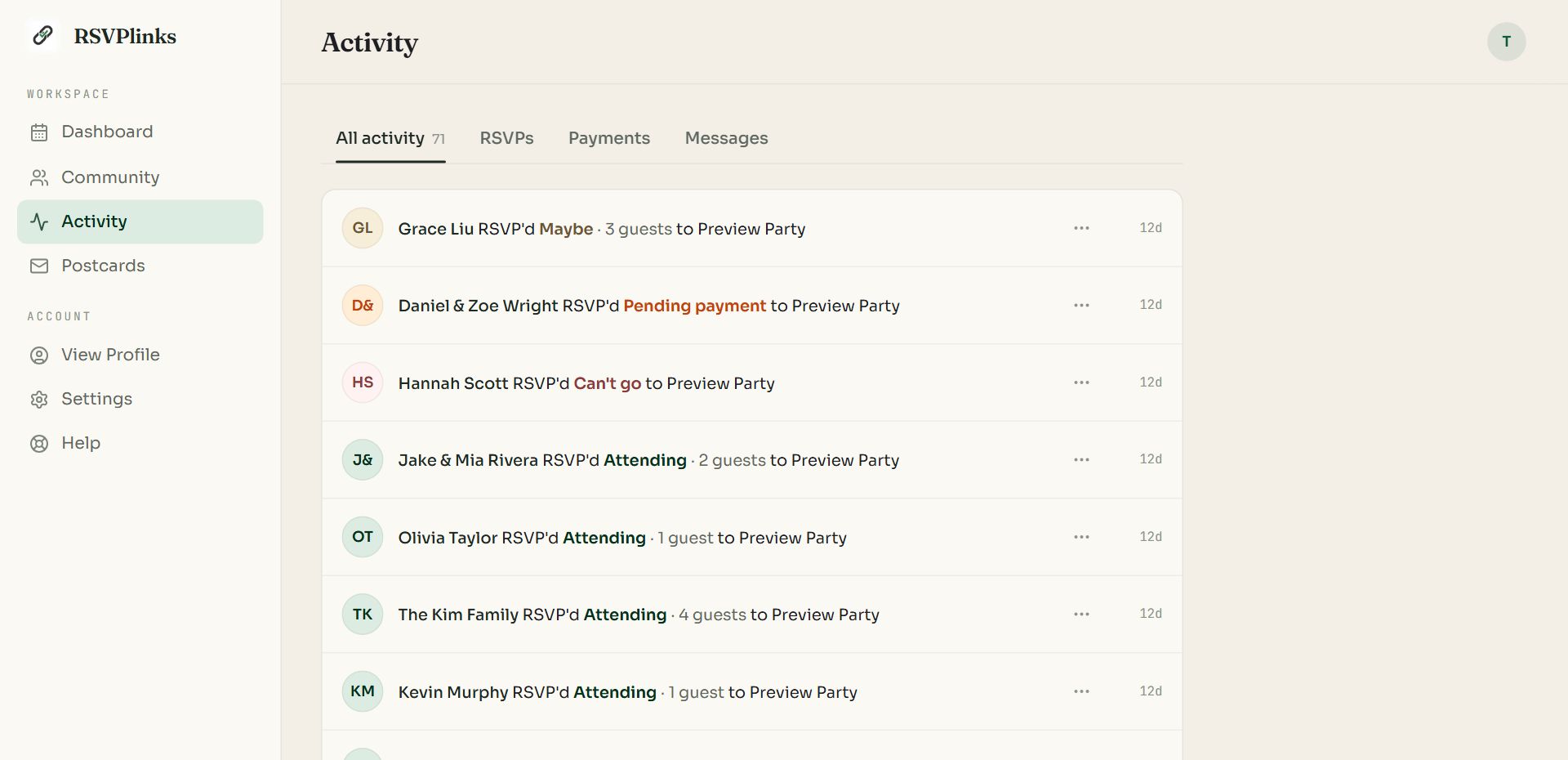
Swipe sideways to see the whole screen, or tap it to enlarge.
Filter by RSVPs, Payments or Messages with the tabs at the top.
- RSVPs shows who replied, how, and for how many guests.
- Payments shows RSVP fees waiting for your approval and those received.
- Messages shows notes guests left with their reply.
- Co-host invitations and plan-limit notices appear here too.
On a phone
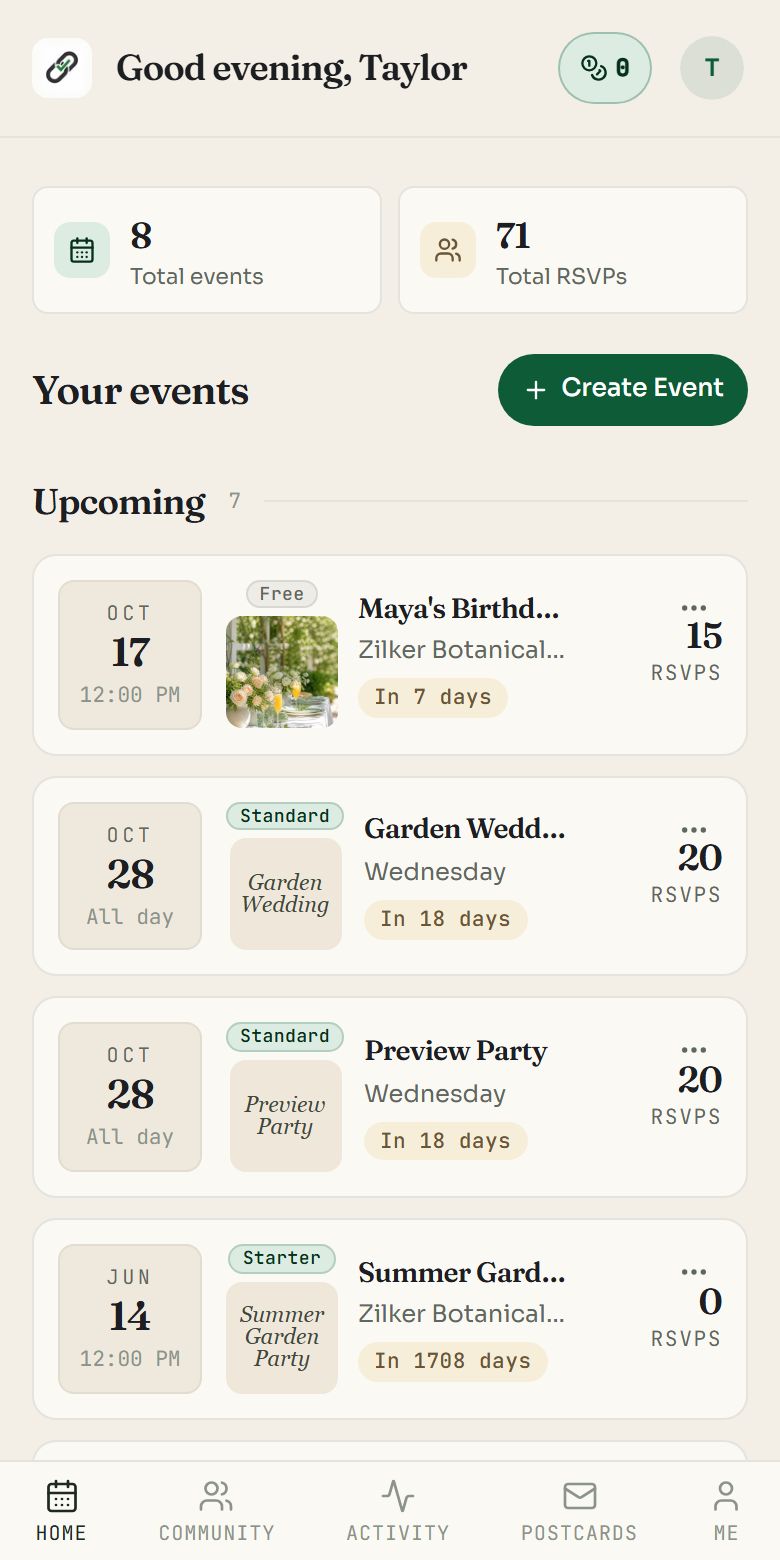
- 1The bottom bar replaces the navigation pane: Home, Community, Activity, Postcards and Me.
Me opens Settings. Inside an event, its tabs scroll sideways across the top of the screen.
Events you help manage
- When another host invites you to co-host, an Invitations block appears on the dashboard with Accept and Decline.
- Accepted events are listed under Events you manage, separate from your own.
- What you can do there depends on the access the owner gave you: Editor or Viewer. See The event dashboard.
How many events you can have
An account can hold 5 free events, and 15 upcoming events in total. When the free limit is reached, Create Event asks you to upgrade one. Paid events do not count toward the free limit, and deleting an old free event frees a place.
Common questions
- How do I copy an event for next year?
- On the dashboard, open the three-dot menu on the event and choose Duplicate. Pick the new date. The copy keeps the design, details, settings and questions, starts with no RSVPs, and is on the Free plan until you upgrade it.
- Can I get a deleted event back?
- No. Deleting an event permanently removes its page, RSVPs, questions and images. Export the guest list as a CSV first if you may need it.
- Where do I see all new RSVPs in one place?
- Open Activity in the navigation pane. It lists replies, messages and payments from every event, newest first.
- Why can I not create another event?
- A free account holds 5 free events. Upgrade one of them, or delete one you no longer need, and Create Event works again.
Still stuck?
Check the FAQ for quick answers, or send us a message and a person will reply.