RSVPs and sharing
Share your event: link, QR code and email invites
Your event has one link. Send it however your guests already talk to each other, print it as a QR code, or email invitations from RSVPlinks and watch who opens them.
Updated
Copy the link
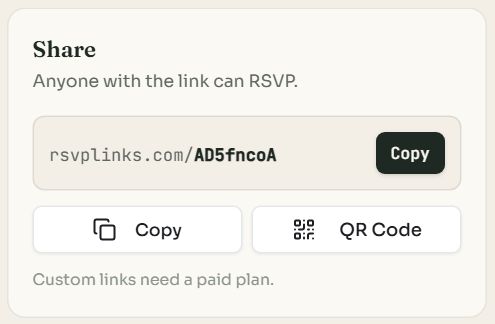
- 1The link. Anyone who has it can open the page and reply.
- 2Copy copies it. The Share button on the event's cover does the same.
- 3QR Code opens the code to download.
Paste the link into a text, a group chat, an email or a social post. On the dashboard home, the three-dot menu on any event also has Copy link. Step-by-step guides: Facebook and Instagram, email invitations, Canva invitations.
Download a QR code
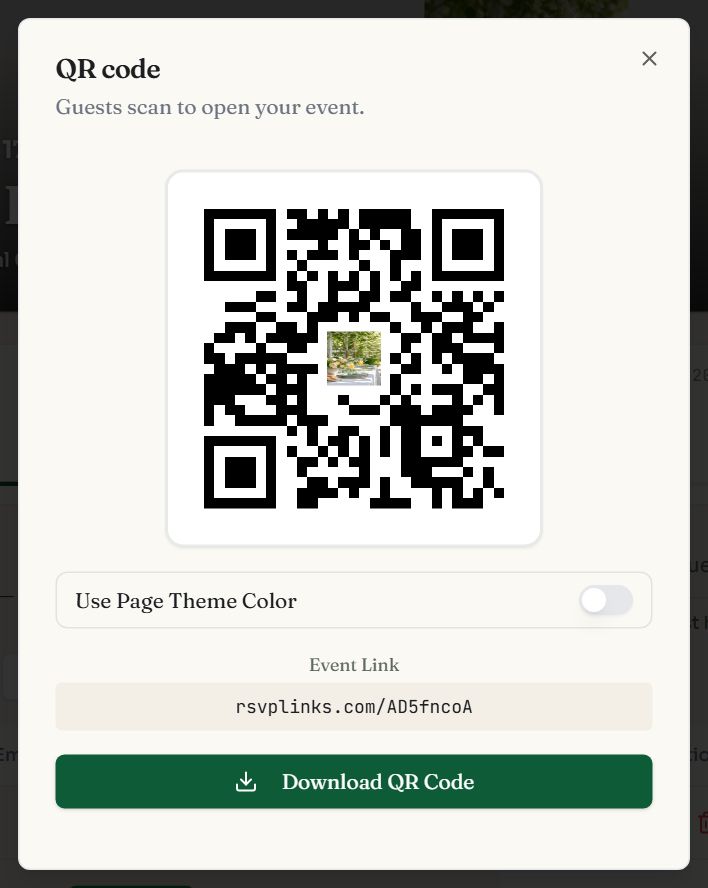
- Press QR Code on the Share card.
- Use Page Theme Color tints the code to match your event.
- Download QR Code saves an image to place on a printed invitation, a poster or a table sign.
- QR codes are free on every event. Print sizing tips are in the QR code guide.
Set a custom link
On a paid event, the end of the link becomes a box you can type in, for example rsvplinks.com/emma-and-james. Type your words and press Save. The same field is in the editor under Premium, as Event Link.
- Use 3 to 60 lowercase letters, numbers and hyphens.
- Each link is unique. If a name is taken or reserved, try adding a year or a place.
- Change it before you share. The old link stops working when you rename, so anyone holding it reaches a dead page. You are warned if guests have already replied.
Send tracked email invites
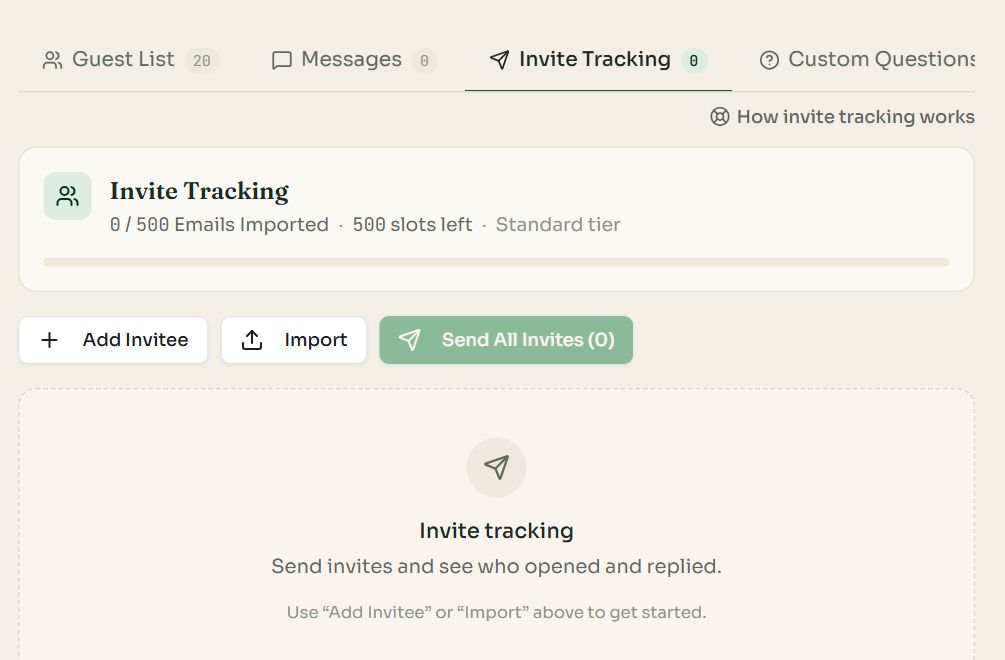
- 1Add Invitee adds one person by name and email.
- 2Import takes a pasted list or a CSV file.
- 3Send All Invites opens the message to review, then emails everyone who has not been sent one.
Each invitee then shows a status so you know who to nudge:
| Status | Meaning |
|---|---|
| Pending | Added, not yet emailed. |
| Sent | Emailed. |
| Viewed | They opened the invitation. |
| RSVPed | They replied. Replies are matched to invitees by email address. |
| Bounced / Marked spam | The address failed or the email was reported. That address is not emailed again. |
- Remind on a row, or Remind All, emails people who were sent an invite and have not replied.
- The number of invitees you can import equals your plan's RSVP limit.
- Tracking matches by email, so switch on Collect emails. You are prompted if it is off.
Message guests who have replied
- 1
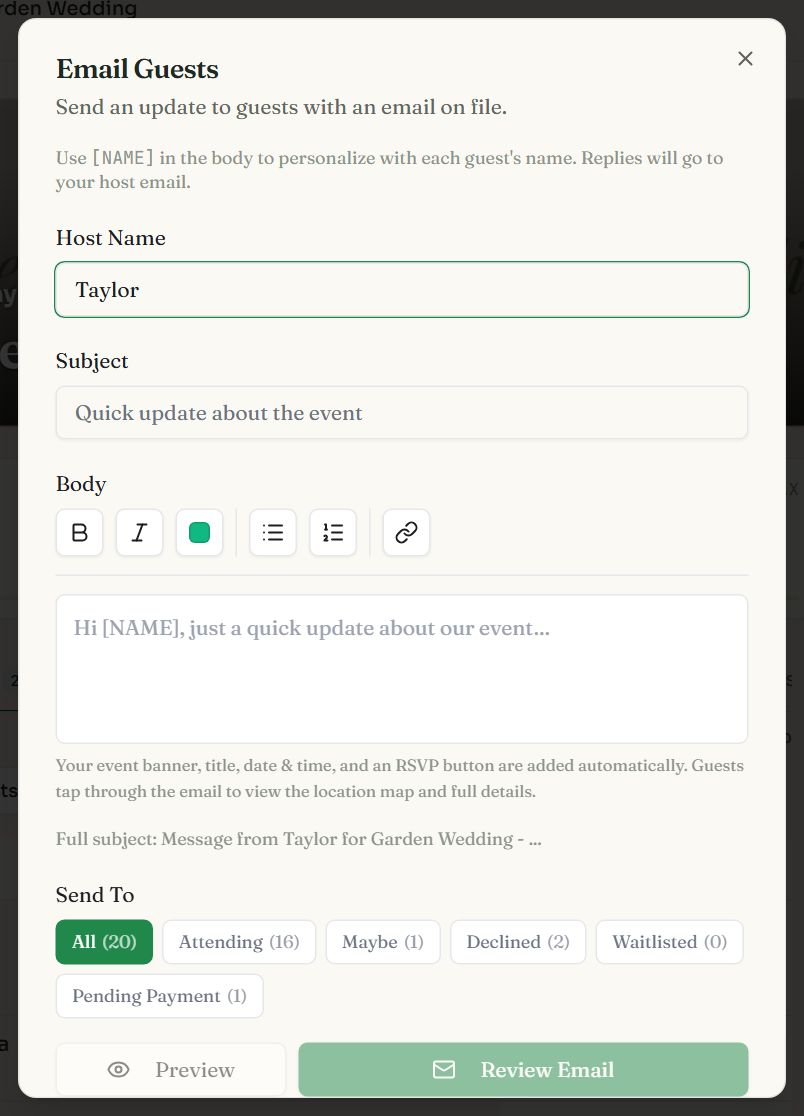
Press Email Guests on the Guest List tab
It is part of paid events, and reaches guests who gave an email address.
- 2
Write the subject and message
Type [NAME] where each guest's name should appear. Your banner, the date and a button to the page are added for you.
- 3
Choose who gets it
Under Send To, pick everyone or one group: Attending, Maybe, Declined, Waitlisted or Pending Payment.
- 4
Preview, review and send
Replies to the email go to you.
To reach people who are not on your guest list yet, such as a mailing list, see Marketing Email. To mail paper invitations, see Postcards.
Common questions
- Is the QR code free?
- Yes. Every event, free or paid, has a QR code you can download and print.
- Can I change my event link after sharing it?
- You can on a paid event, but the old link stops working straight away and does not forward to the new one. Set your custom link before you send it out.
- Who can see my event page?
- Anyone with the link. Events are not listed publicly unless you choose Publish to Profile. Share the link only with people you want to invite.
- Can I text the invitation instead of emailing it?
- Yes. Copy the link and paste it into a text or a group chat from your own phone. Guests tap it and reply in their browser. RSVPlinks itself sends email, not text messages.
Still stuck?
Check the FAQ for quick answers, or send us a message and a person will reply.