Design your page
Build an event website
Any event page can grow into a website: a cover, a menu, the sections guests read, and the RSVP as the last section. It is the same event, link, guest list and plan, and it is free.
Updated
Start a website
- 1
Open the Layout picker
In the editor, press Layout above the page (or Layout on the side rail) and switch to the Event website tab.
- 2
Pick a look
There are 22 looks, all free on every plan: Rosewater, Little Honey, Modern Minimal, Woodland, Bordeaux, Terracotta, Verdant, Two Ink, Hydrangea, Snowbound, Quince Rosa, Sticker Y2K, Cloud Nine, Mixtape, Celestial, Riviera, Varsity, Party Animals, Gatsby, Midnight Garden, Disco Fever, Storybook. Each brings its own colors, fonts, cover, intro, header and section animation.
- 3
Fill in the sample sections
A new website starts with its look's sections, filled with sample text. Guests don't see a sample section until you change something in it, so type over it or remove it.
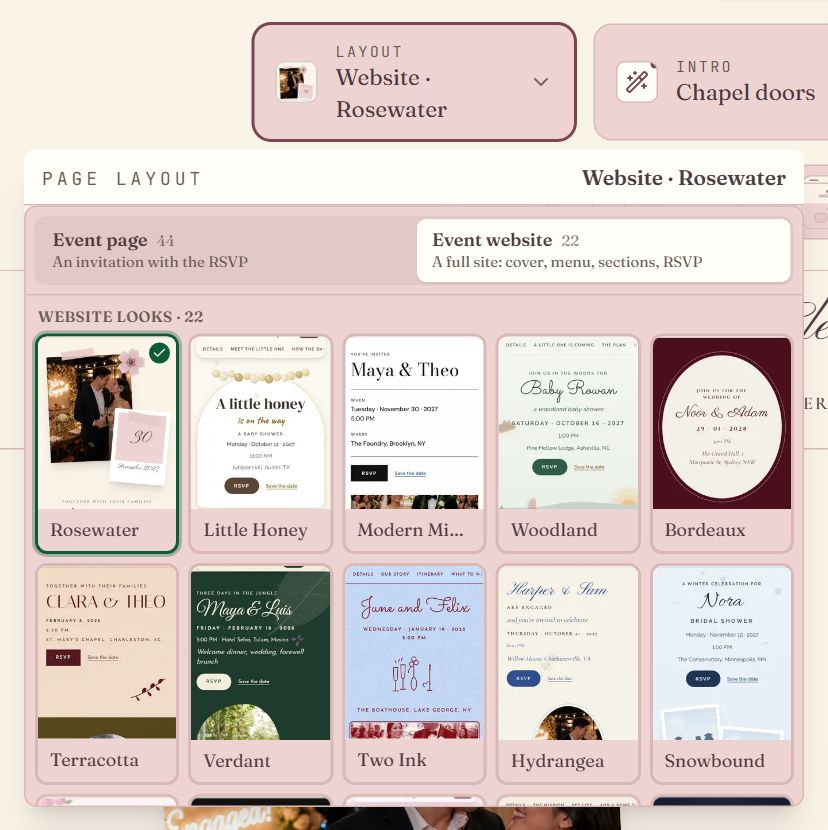
- 1The Event website tab lists every look.
- 2Pick a look. The one in use has a check mark.
- Prefer to start from a finished design? Every website template opens the editor in its look, with its sample sections.
- On any other layout, the Make it a website card under the page switches to the Website layout in one click.
- Switching to another look keeps your words, sections and replies. A message at the bottom of the screen offers Undo.
What a website has
| Part | What it does |
|---|---|
| Cover | Your names or title, the date and the RSVP button, drawn in the look's style. Add a countdown if you like. |
| Header | The bar that stays at the top, with links to every section and RSVP. |
| Details | When, where, the description and who is hosting. |
| Sections | Your story, the schedule, travel, the registry and more. You choose which. |
| RSVP | The last section. Replies go to your guest list, as on any event page. |
| Sign-off | The band at the very bottom, like the back of a printed invitation: your header wording or monogram, the day and the place. It fills in by itself. |
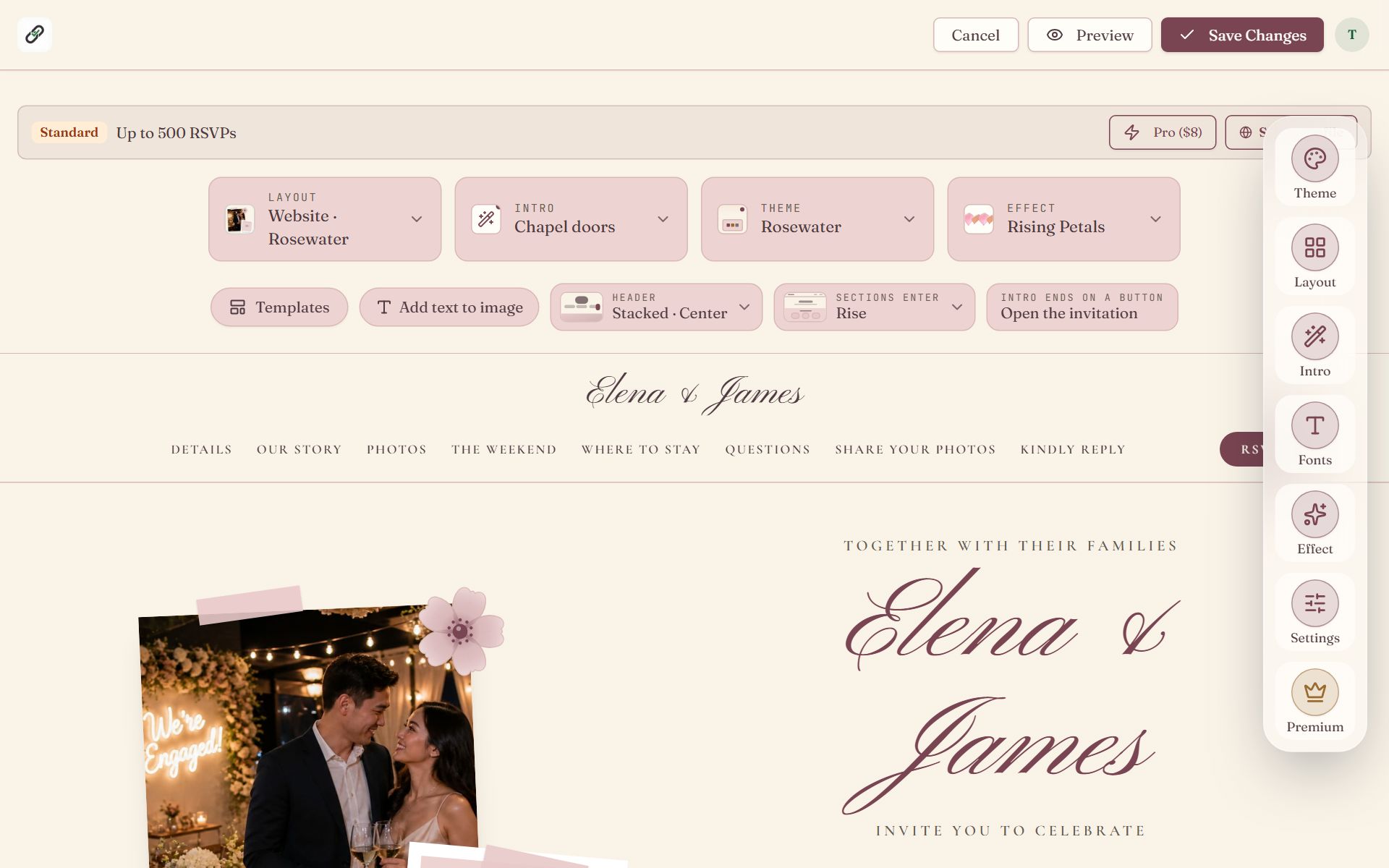
Swipe sideways to see the whole screen, or tap it to enlarge.
- 1Layout shows the look in use and opens the looks.
- 2Header changes the bar at the top.
- 3Sections enter sets how sections appear as guests scroll.
- 4Intro ends on a button holds the button's words.
- 5The header, as guests see it. Click its wording to type your own.
Sections belong to the Website layout. The other layouts are single-page invitations, so they show none. If you switch away from Website, your sections are kept and come back when you switch again.
Change the header
Each look starts with its own header. Press Header in the row above the page to change it.
- Format: Bar, Stacked, Split, Floating, Minimal.
- Wording: type it on the header itself, such as "Our Wedding". Until you do, it shows your monogram. Put it on the left, in the center or on the right (each format offers the positions that fit it).
- Navigation: section links in a row, a menu button that opens a full list of sections, or a row of links guests swipe sideways.
- On a phone the header shows the section being read and a menu button that opens a numbered list of every section.
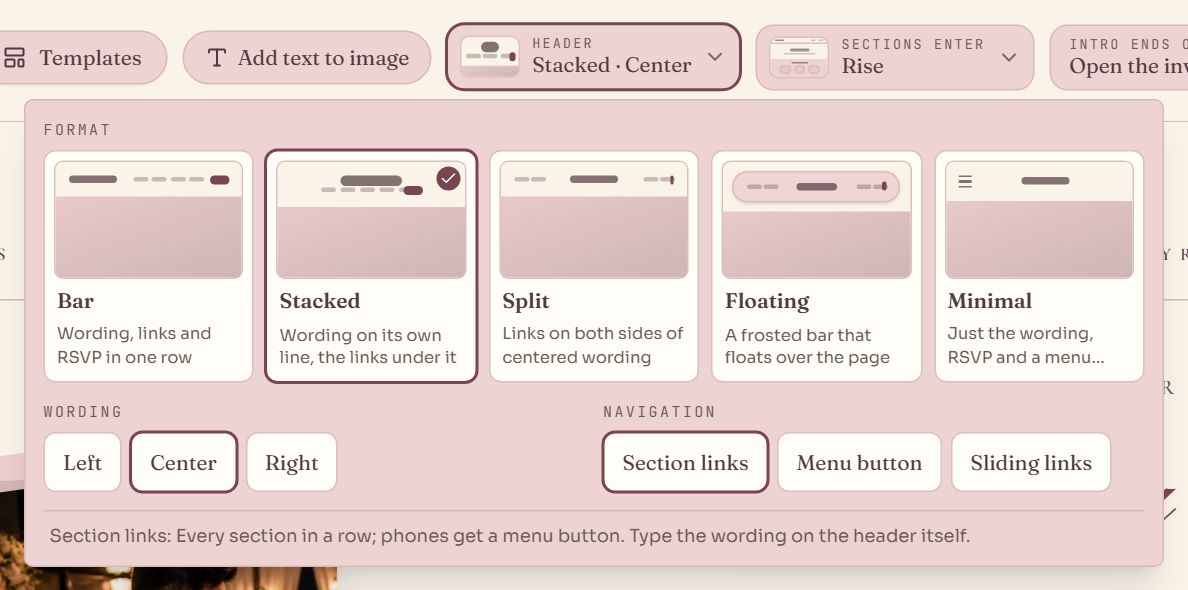
- 1Pick a format. The one in use has a check mark.
- 2Where the wording sits.
- 3How guests navigate between sections.
Add and arrange sections
Press Add a section on the page and pick a kind:
| Section | What it holds |
|---|---|
| Our story | How you met, in a few moments |
| Schedule | What happens when, across one or more days |
| Where to stay | Hotels, room blocks and getting there |
| What to wear | Dress code, notes and colors |
| Wedding party | The people standing with you |
| Questions | The things guests always ask |
| Registry | Links to your registries or funds |
| Photos | A gallery of your photos |
| Guest photos | Guests add their photos to the page (Guest Photos add-on) |
| Message the hosts | A form guests use to write to you, no phone number shown |
| Text | A heading and a few paragraphs |
- A page holds one section of each kind, and as many Text sections as you like, up to 20 in all. The Add menu leaves out the kinds already on the page.
- Click any text on the page and type. Add or remove list items (a moment, a hotel, a question) where they sit.
- Using Event Parts? Use my event parts in the Schedule section fills a row for each part with its start time.
- Each section has its own controls to move it up or down, hide it, lock it behind the guest password or remove it.
- Rename any heading: the menu uses your heading.
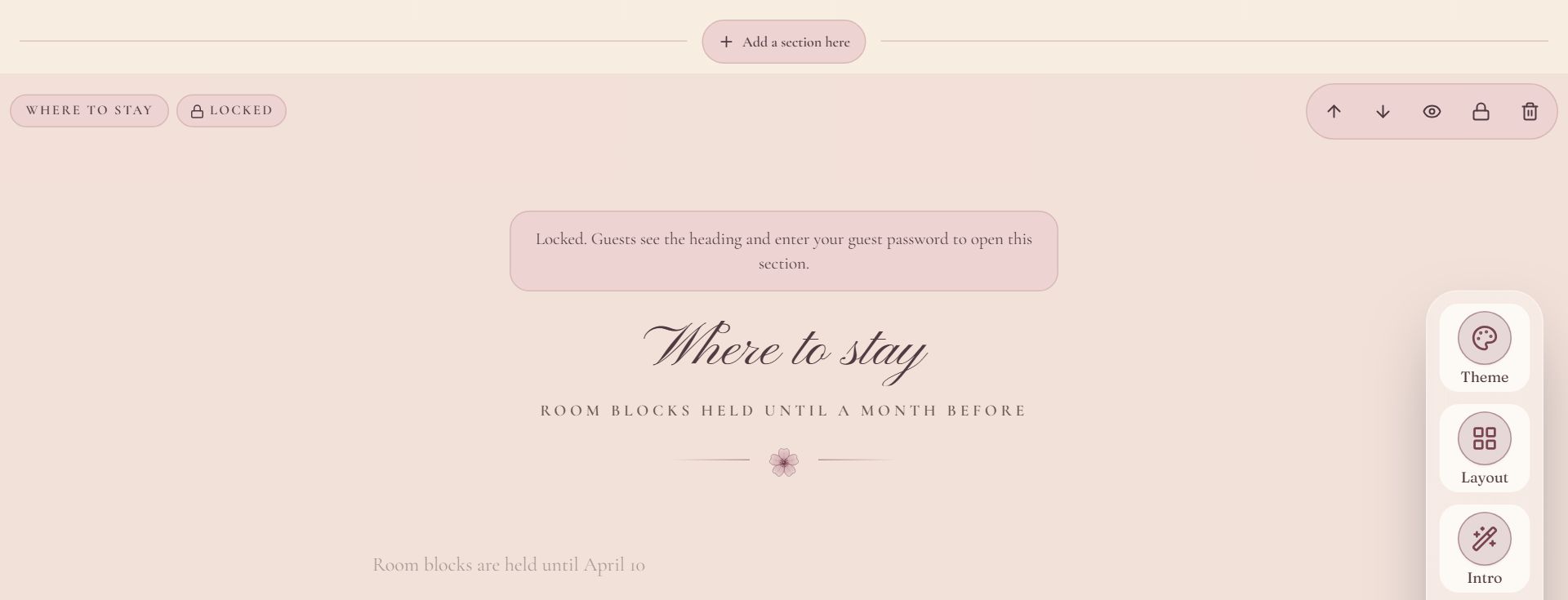
Swipe sideways to see the whole screen, or tap it to enlarge.
- 1Add a section here puts a new section in this spot.
- 2Move the section up or down, hide it, lock it or remove it.
- 3Locked: guests need the password to open this section.
Your photos
The Photos section holds up to 6 photos on a free event and 40 on a paid one. Press Add photos in the section to upload; it stops when the event is full and says why. Story moments and the wedding party can carry a photo each.
Intro and section animation
- A website's intro holds on its last scene behind a button, such as "Open the invitation", until the guest taps in. Change the button's words in the Intro ends on a button line above the website, or clear them and the intro ends by itself.
- Sections enter sets how sections appear as guests scroll: 16 animations, from Rise and Stack to Parallax and Ink wash, or None. Each look starts with its own.
- Visitors who ask their device for reduced motion get a still page.
Countdown and Save the date
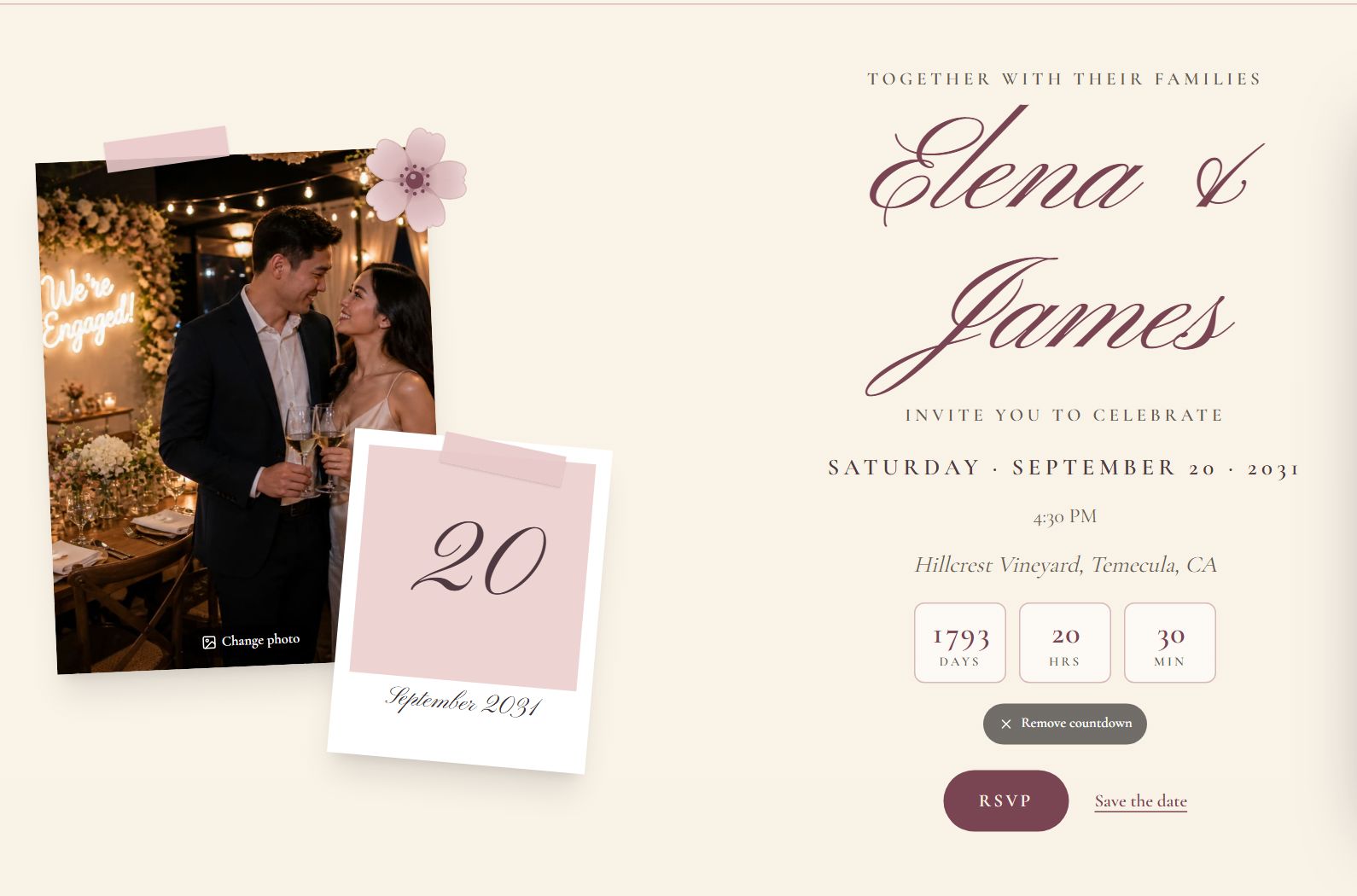
- A countdown to the day is off until you add it: press Add a countdown on the cover in the editor. Remove countdown takes it off again.
- The calendar button on a website reads Save the date. It opens Google, Apple, Outlook and other calendars with the event filled in. Reword it under Customize wording (Calendar button).
Swipe sideways to see the whole screen, or tap it to enlarge.
- 1Add a countdown / Remove countdown (shown in the editor only).
- 2Save the date adds the event to a guest's calendar.
Lock a section
Keep one section for invited guests only, such as where to stay or the wedding party, while the rest of the site stays open.
- 1
Press the lock
In the editor, press the lock in the section's control bar. The section shows Locked.
- 2
Set a guest password
If the event has none yet, the section asks for one. It is the one password for the whole page, the same as under Password protection.
- 3
Save
Guests see the section's heading and a password box in place of its content. One entry opens every locked section.
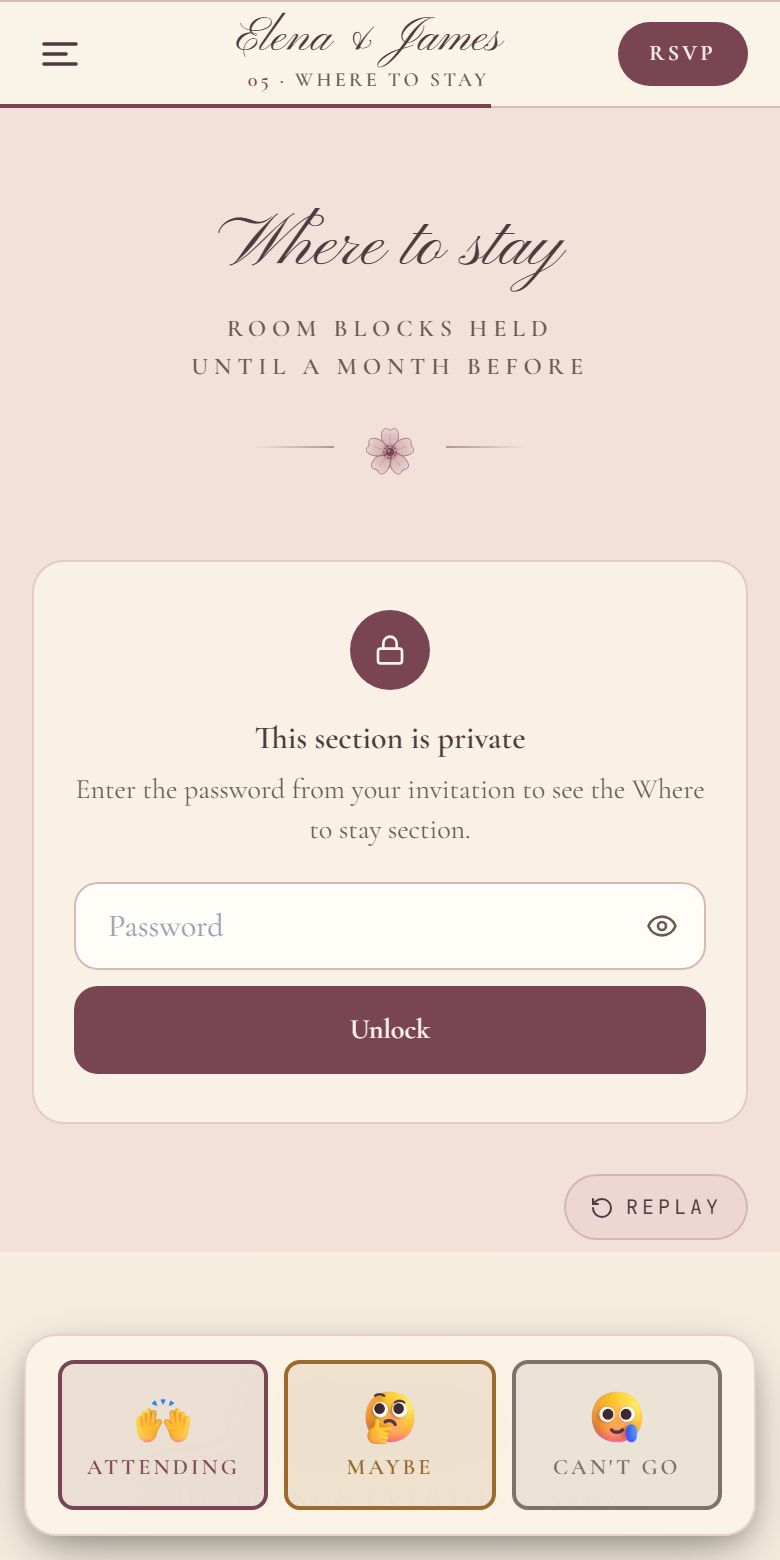
- 1What guests see until they type the password.
A locked section's photos are never used for link previews, and a locked Guest photos or Message the hosts section takes nothing until the guest unlocks it. Press the lock again to open the section to everyone.
Personal greeting and link previews
- On a paid event, a guest who opens the website from their invitation email is greeted by first name ("Welcome, Maya"). Send invitations from Invite Tracking on the event dashboard. More
- With no cover photo, a shared link previews with the website's first Photos photo, or else a story photo. Locked sections are never used.
After the event
From the day after the event, the website becomes a keepsake. The cover thanks your guests in place of the RSVP button and countdown, the Photos and Guest photos sections move to the top, and the RSVP section becomes a thank-you with no form. The link keeps working.
Password and your own domain
- Password protection covers the website too. Lock single sections (see above); lock the description and all the sections and photos (guest photos and the Message the hosts form included) stay hidden; lock the whole page and everything does. More
- Put the website on your own address: buy a domain from $20 a year on any event, or connect one you own with the Custom Domain add-on. See Custom domains.
Common questions
- Is the event website free?
- Yes. Every look and section is free on every plan, and a free event takes 20 RSVPs. A paid event raises the RSVP limit, holds 40 photos instead of 6 and can remove the "Powered by RSVPlinks" line.
- Can I go back to a single-page invitation?
- Yes. Pick any other layout. Your sections are kept, hidden, and come back if you switch to Website again.
- Why can't I add a second Schedule section?
- A page holds one section of each kind, so a site stays easy to read and its menu stays short. Text is the exception: add as many as you like.
- Do guests need an account to use the website?
- No. Guests open the link, read the site and reply in the RSVP section. No sign-up, no app.
Still stuck?
Check the FAQ for quick answers, or send us a message and a person will reply.