Paid events and add-ons
Guest Photos: let guests share their photos
With the Guest Photos add-on, guests add the photos they took to a Guest photos section on your website. You choose what shows, and the page keeps them after the event.
Updated
Turn it on
- 1
Use the Website layout
Guest Photos is a website feature. Start a website if your event is on another layout.
- 2
Add the add-on
Guest Photos costs $6 or 1 credit and needs a paid event, or is bought together with the upgrade. Find it in the Add-ons list of Upgrade this event on the event dashboard.
- 3
Add a Guest photos section
In the editor, press Add a section and pick Guest photos. Save the event.
What guests see
- An Add your photos button. Guests pick up to 10 photos at a time from their phone or computer and can add their name. No app, no account.
- Each photo is resized and its location data removed before it is stored.
- Approved photos show in the section, each with its caption and the guest's name when there is one.
- An event keeps up to 1,500 guest photos.
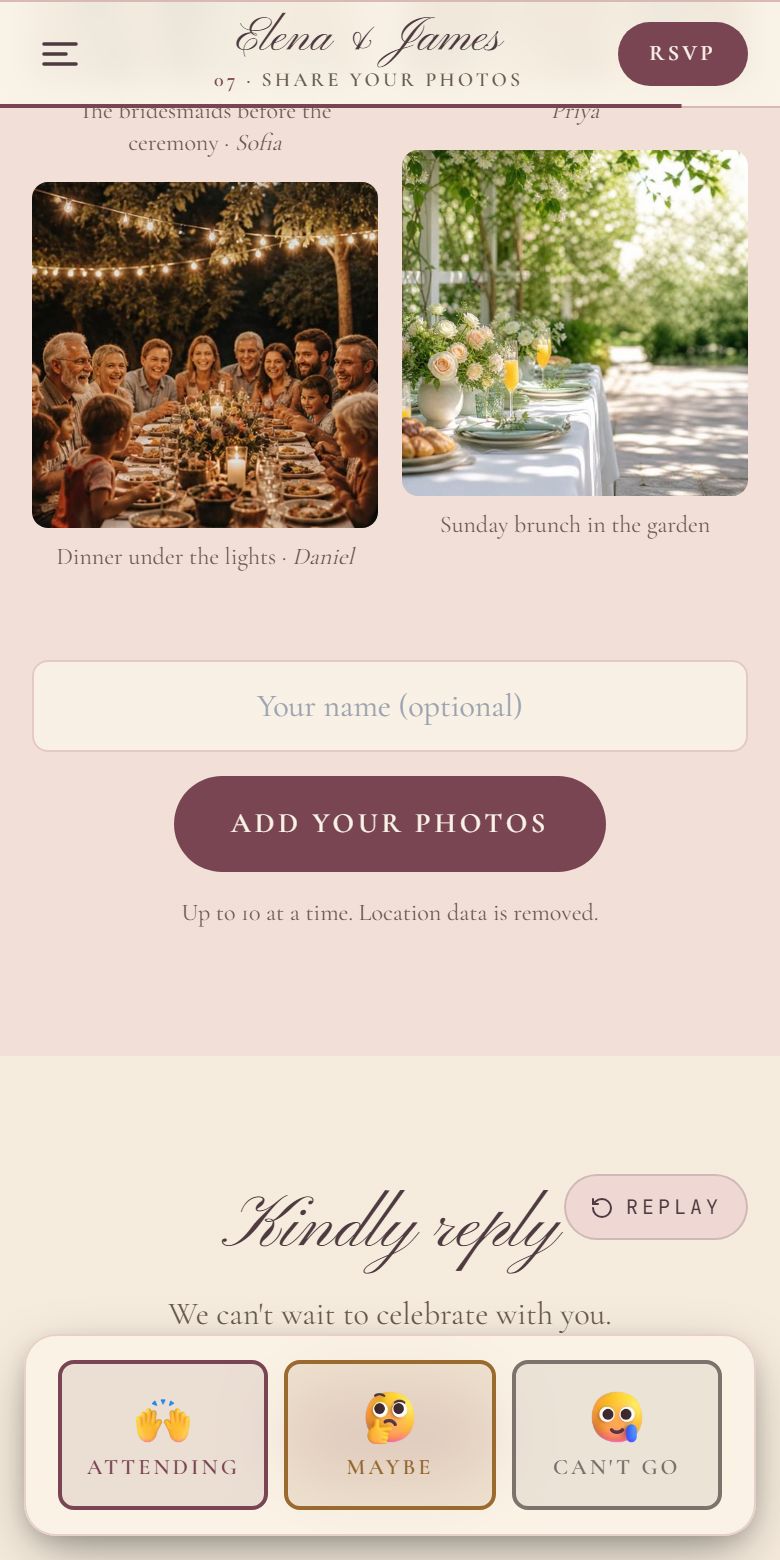
- 1Guests can add their name (optional).
- 2Add your photos opens their photos, up to 10 at a time.
Approve photos first, or show them right away
Every photo is screened automatically when it arrives. Then it either waits for you or goes straight onto the page:
- Approve first (the default): new photos wait in the Photos tab until you show them.
- Show right away: turn on Show new photos without my approval, in the Photos tab or on the Guest photos section in the editor.
- A photo the screening flags always waits for you, marked Flagged by screening.
Manage photos in the Photos tab
Open the event dashboard and choose Photos. The filters split photos into Waiting, On the page and Hidden.
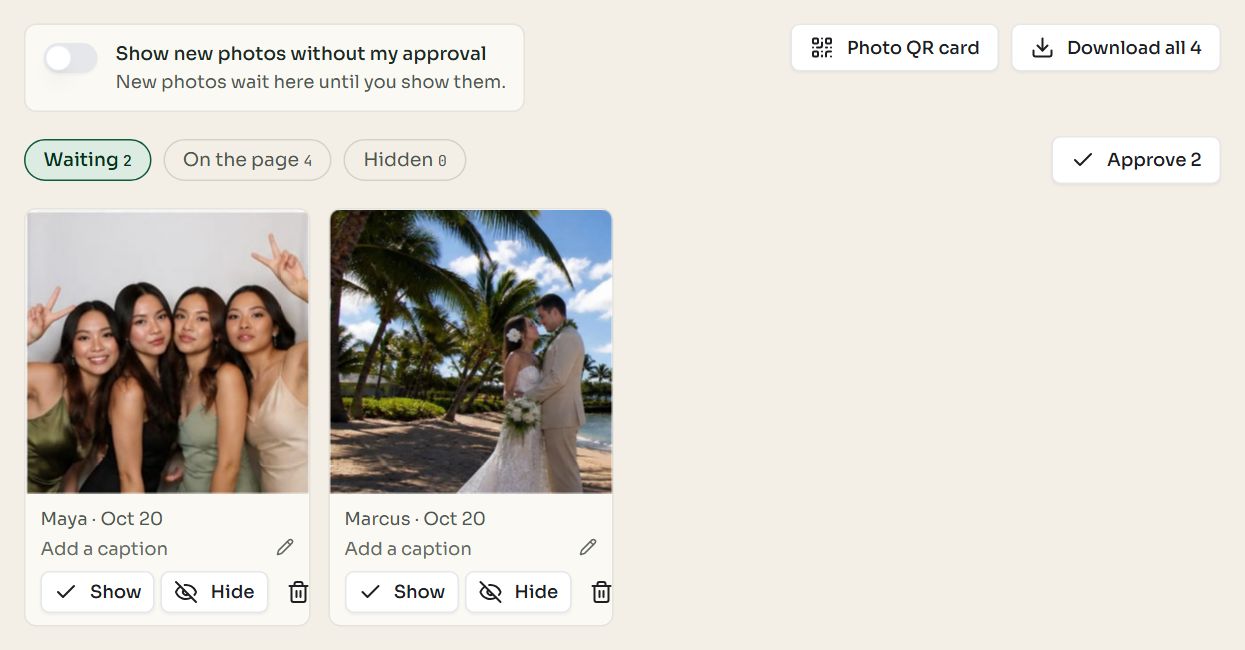
- 1Show new photos without my approval: off means you approve first.
- 2Photo QR card: a card to print for the tables.
- 3Download all: the photos on the page, full size.
- 4The filters: Waiting, On the page and Hidden.
- 5Approve shows every waiting photo at once.
- 6Click to add a caption.
| To | Do this |
|---|---|
| Put a photo on the page | Press Show on it, or Approve to show every waiting photo at once. |
| Take a photo off the page | Press Hide. It stays in the Hidden filter, and you can show it again. |
| Remove a photo for good | Press the bin to delete it. |
| Add a caption | Type one on the photo, up to 120 characters. It shows under the photo on the page. |
| Keep every photo | Press Download all: full-size copies of the photos on the page, in zip files of up to 200 each. |
| Ask guests at the venue | Press Photo QR card, then Print card: your event's title, a QR code that opens the website at its Guest photos section (on your own domain once one is live) and three short steps. |
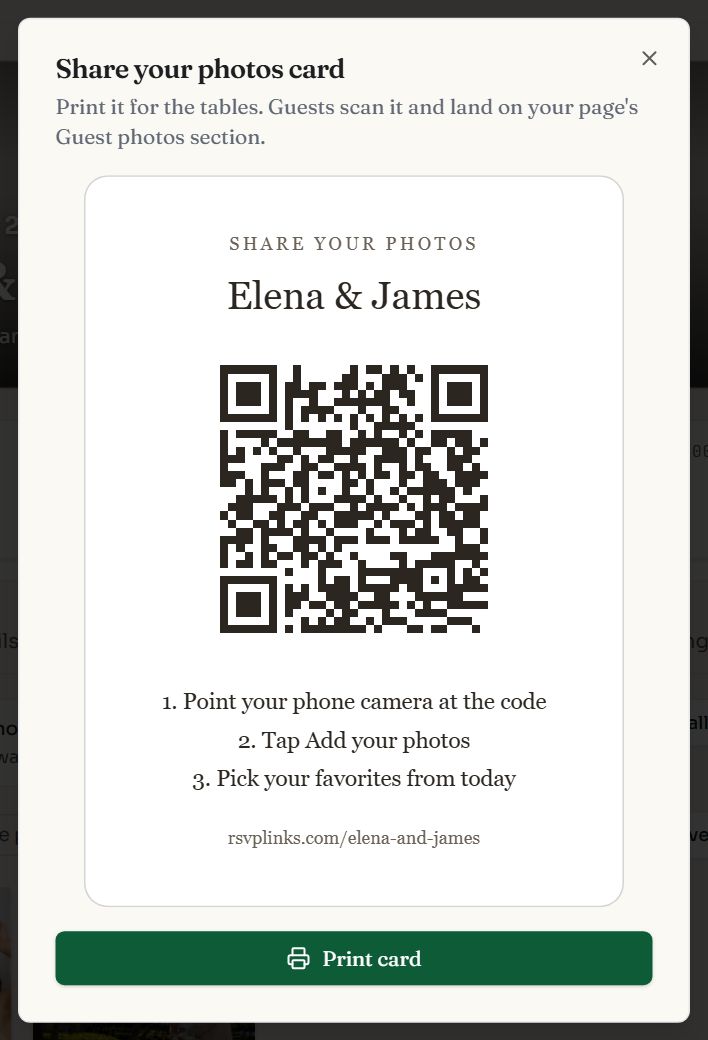
- 1Print card opens it in a print window.
After the event
Once the day has passed, the Guest photos and Photos sections move to the top of the website, so the link becomes a keepsake album. Guests can keep adding photos afterwards.
Guest photos are kept while the event exists. Deleting a photo, the event or your account deletes the files too.
Common questions
- Do guests need an app to share photos?
- No. They add photos from the website in their browser, with no app or account.
- Can anyone post photos to my page?
- Anyone with the link can send one, but by default nothing shows until you approve it, and every photo is screened first. Lock the page, or just the Guest photos section, with the guest password and only guests who know it can add photos.
- Is location data kept?
- No. Every photo is re-saved on upload, which removes its location and other camera data.
- How much is Guest Photos?
- $6 or 1 credit, once, for one paid event.
Still stuck?
Check the FAQ for quick answers, or send us a message and a person will reply.