Websites
Add sections to your event website
Sections are the pages of your website, one after another: your story, the schedule, where to stay, the registry and more. Add the ones you need, in the order you like.
Updated
Add and arrange sections
Press Add a section on the page and pick a kind:
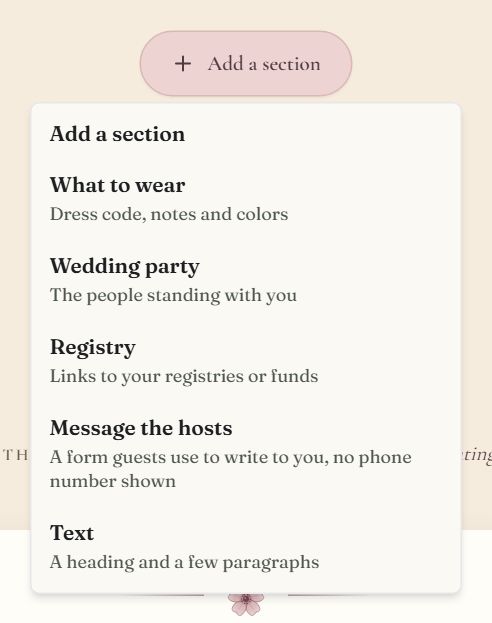
- 1Add a section at the end of the page.
- 2Pick a kind. Kinds already on the page are left out.
| Section | What it holds |
|---|---|
| Our story | How you met, in a few moments |
| Schedule | What happens when, across one or more days |
| Where to stay | Hotels, room blocks and getting there |
| What to wear | Dress code, notes and colors |
| Wedding party | The people standing with you |
| Questions | The things guests always ask |
| Registry | Links to your registries or funds |
| Photos | A gallery of your photos |
| Guest photos | Guests add their photos to the page (Guest Photos add-on) |
| Message the hosts | A form guests use to write to you, no phone number shown |
| Text | A heading and a few paragraphs |
- A page holds one section of each kind, and as many Text sections as you like, up to 20 in all. The Add menu leaves out the kinds already on the page.
- Click any text on the page and type. Add or remove list items (a moment, a hotel, a question) where they sit.
- Using Event Parts? Use my event parts in the Schedule section fills a row for each part with its start time.
- Each section has its own controls to move it up or down, hide it, lock it behind the guest password or remove it.
- Rename any heading: the menu uses your heading.
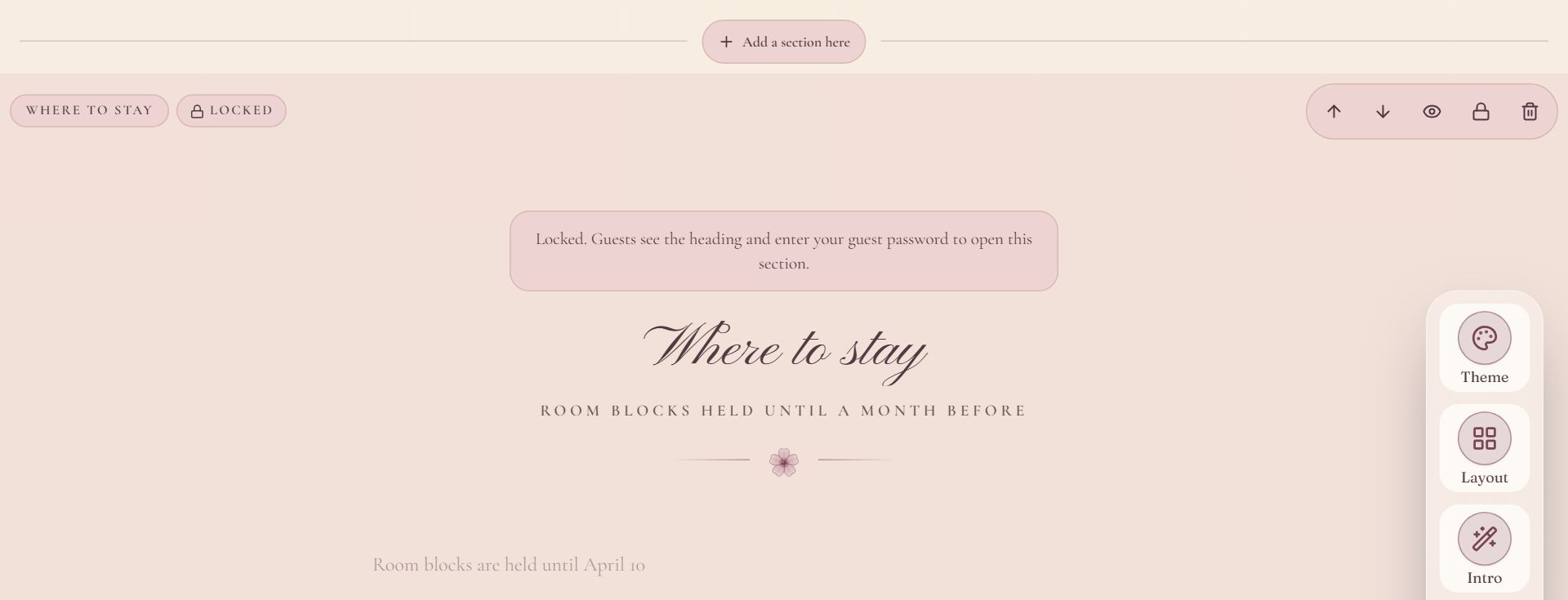
Swipe sideways to see the whole screen, or tap it to enlarge.
- 1Add a section here puts a new section in this spot.
- 2Move the section up or down, hide it, lock it or remove it.
- 3Locked: guests need the password to open this section.
Your photos
The Photos section holds up to 6 photos on a free event and 40 on a paid one. Press Add photos in the section to upload; it stops when the event is full and says why. Story moments and the wedding party can carry a photo each.
Lock a section
Keep one section for invited guests only, such as where to stay or the wedding party, while the rest of the site stays open.
- 1
Press the lock
In the editor, press the lock in the section's control bar. The section shows Locked.
- 2
Set a guest password
If the event has none yet, the section asks for one. It is the one password for the whole page, the same as under Password protection.
- 3
Save
Guests see the section's heading and a password box in place of its content. One entry opens every locked section.
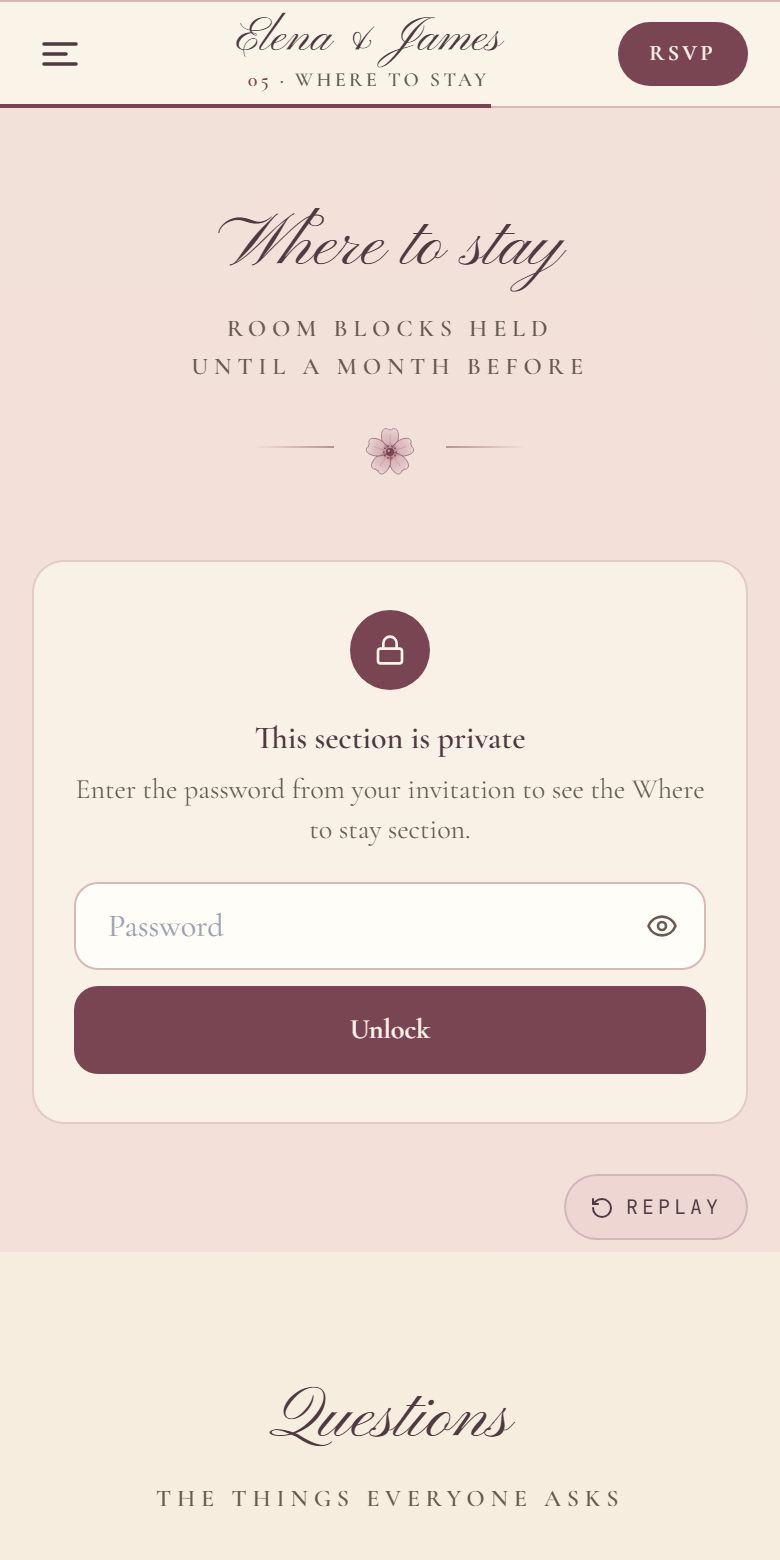
- 1What guests see until they type the password.
A locked section's photos are never used for link previews, and a locked Guest photos or Message the hosts section takes nothing until the guest unlocks it. Press the lock again to open the section to everyone.
Common questions
- Why can't I add a second Schedule section?
- A page holds one section of each kind, so a site stays easy to read and its menu stays short. Text is the exception: add as many as you like.
- How many photos can a website hold?
- 6 on a free event and 40 on a paid one, across the whole site. Guest uploads through Guest Photos don't count toward it.
- Can I hide a section without deleting it?
- Yes. Press the eye in the section's control bar. Guests don't see it, and it stays in the editor until you show it again.
Still stuck?
Check the FAQ for quick answers, or send us a message and a person will reply.