Paid events and add-ons
Thank-You Page: send guests a thank-you card
Thank-You Page is a digital thank-you card guests open after the event: an opening animation, your words, your photos and theirs, with emoji reactions and comments. It is the one add-on a free event can buy too.
Updated
Make your card
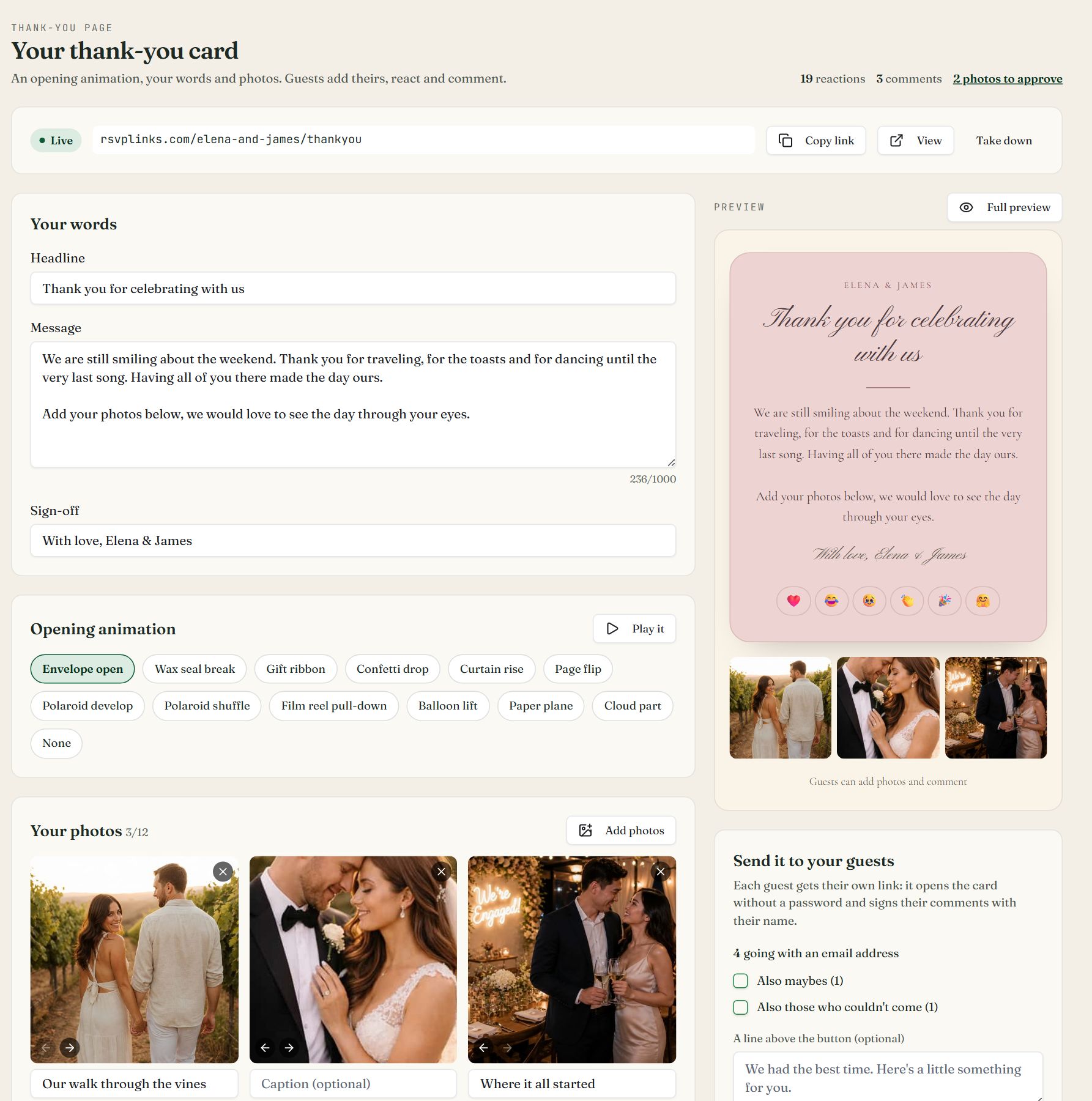
Swipe sideways to see the whole screen, or tap it to enlarge.
- 1Status. Before you publish: Add for $6 or Use 1 credit. Once live: the link, Copy link, View and Take down.
- 2Your words. Headline, message and sign-off.
- 3Opening animation. Pick one, or None. Play it shows it full screen.
- 4Add photos. Up to 12, each with an optional caption. The arrows on a photo change the order.
- 5Preview. The card as guests see it, updated as you type.
- 6Full preview. Opens the whole page in a new tab, opening animation first, with sample photos wherever yours aren't in yet and sample reactions and comments. Nothing you do there reaches guests. Unsaved changes save first.
- 1
Open it
On the event dashboard, press the Thank-You Page card on the right. Co-hosts with edit access can open and edit the card too.
- 2
Write your words
The card starts with suggested wording for your occasion, so it is never empty. Change the Headline, the Message (up to 1,000 characters) and the Sign-off.
- 3
Pick an opening animation
Choose one of 12 animations made for a thank-you, or None. Play it replays it in the preview.
- 4
Add your photos
Add photos takes up to 12 favorite moments, each with an optional caption. The opening animation uses them too.
- 5
Choose what guests can do
Under What guests can do, switch on Add their photos, React with emoji and Leave comments. The preview on the right shows the card as guests will see it; Full preview plays the whole page, opening animation included.
- 6
Save, then publish
Press Save at the bottom of the form. Then pay to publish from the status bar at the top: Add for $6, or Use 1 credit if you have credits.
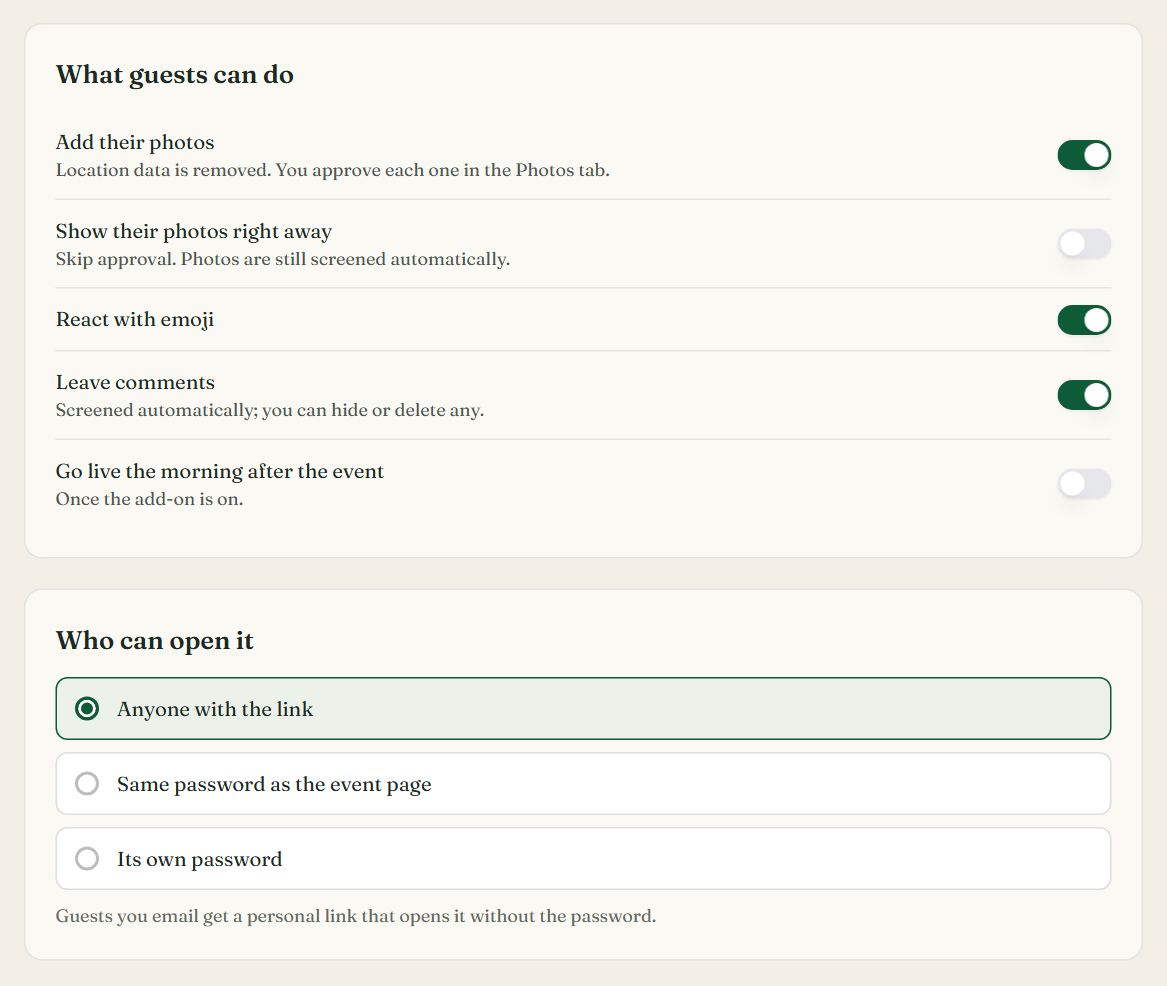
- 1Add their photos. Show their photos right away under it skips your approval.
- 2React with emoji on the card and its photos.
- 3Leave comments.
- 4Go live the morning after the event. Shown until the event has passed.
- 5Who can open it. Anyone with the link, the event's password, or a password of its own.
When guests can open it
- Bought before the event: it goes live by itself the morning after (Go live the morning after the event under What guests can do), or press Publish now.
- Bought after the event: it goes live as soon as you add it.
- Take down hides a published card again. Your words, photos and comments are kept.
The card lives at your event link plus /thankyou, for example rsvplinks.com/maya-30/thankyou. On a custom domain it is yourdomain.com/thankyou. Copy link in the status bar copies it.
Who can open it
| Choice | What guests need |
|---|---|
| Anyone with the link | Nothing. The card opens for whoever has the link. |
| Same password as the event page | The guest password from password protection. |
| Its own password | A password just for the card. It does not open the event page. |
Guests you email get a personal button that opens the card straight away. On a locked card the email also shows the password, so they can open it on another device or share it.
What guests see
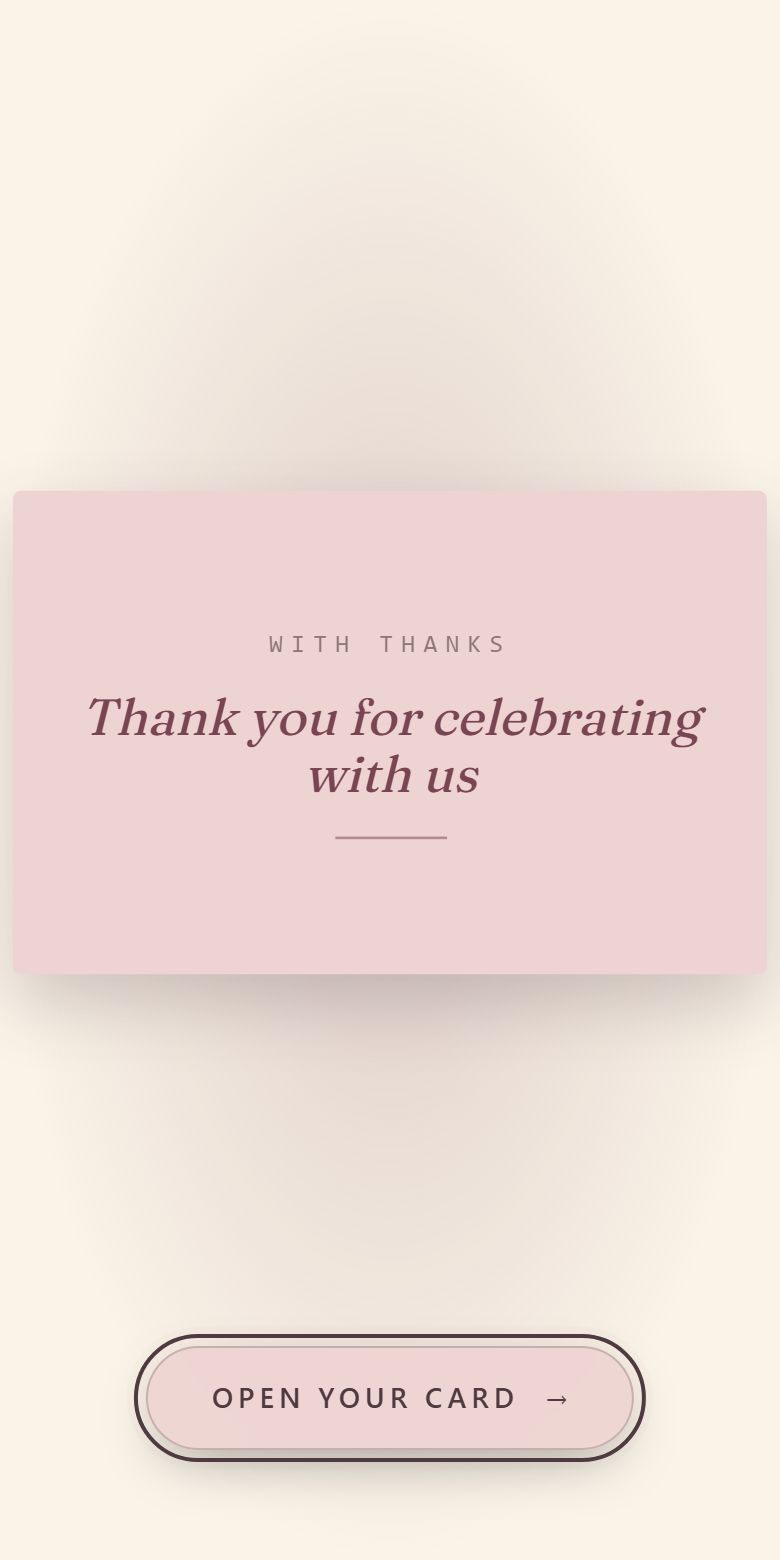
The opening animation plays first. With your photos added, the photo animations use them.
- 1Open your card opens it.
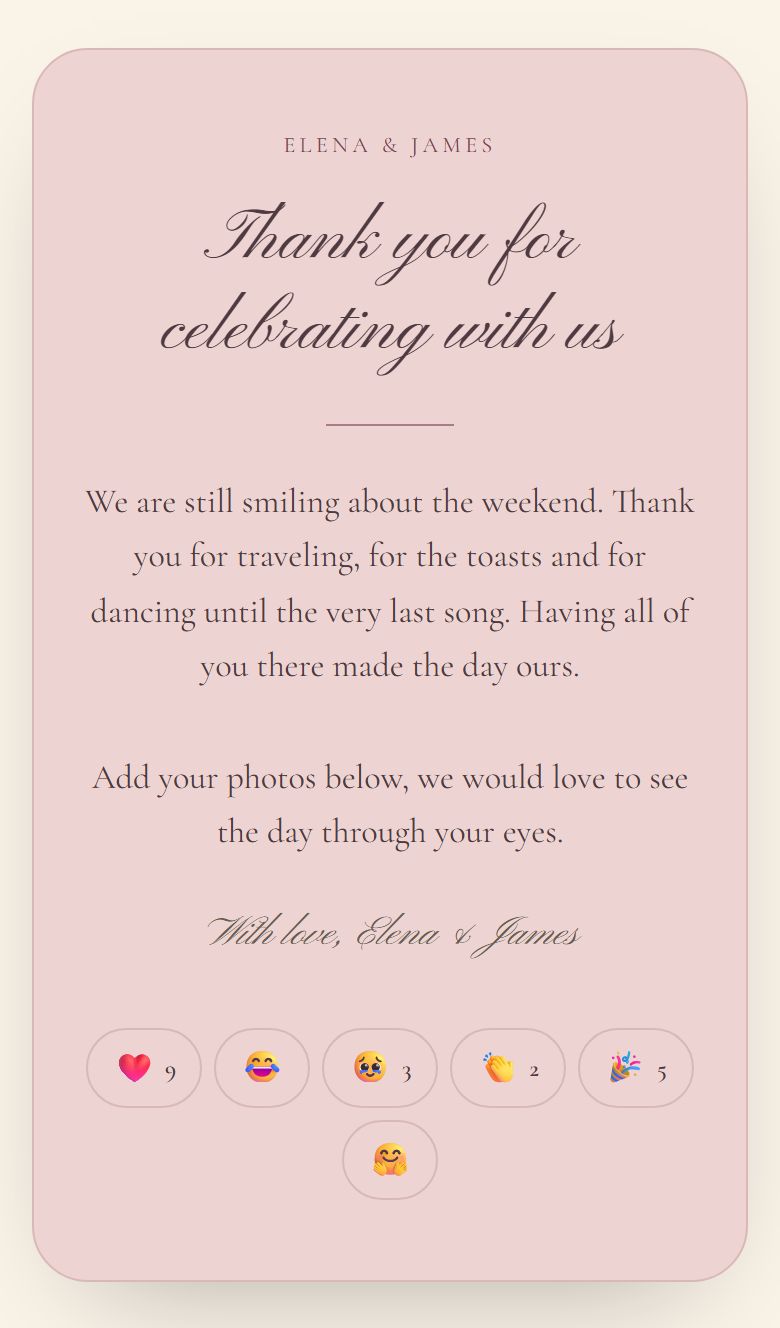
- 1Reactions. A tap adds the guest's emoji; the numbers count everyone's.
Your photos follow the card, then From your guests with the photos guests added and you approved.
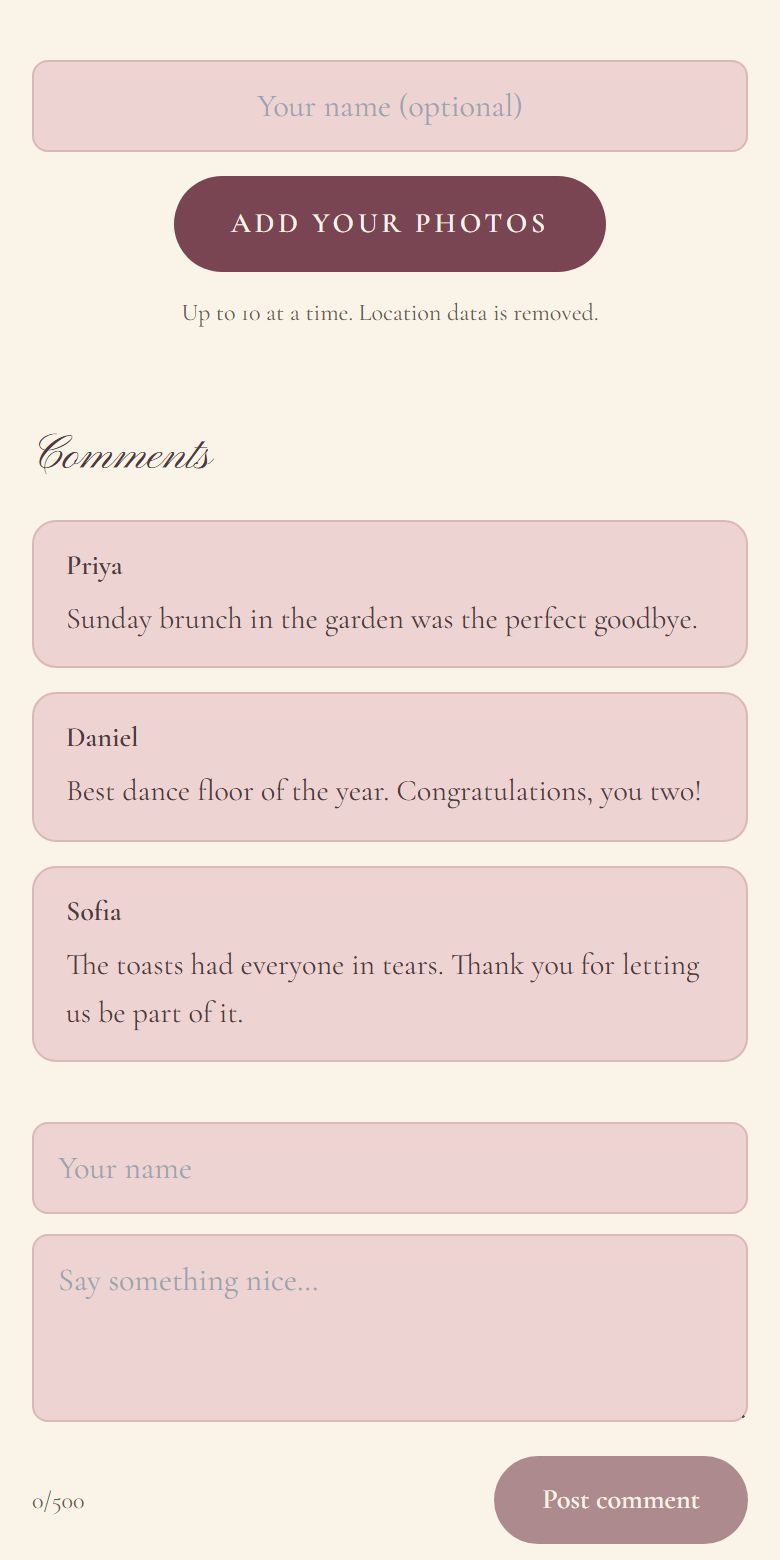
- 1Add your photos. Guests can add their name first.
- 2The comment box. Guests from your email comment under their RSVP name; others type a name.
- 3Post comment.
Guest photos, reactions and comments
- Photos: guests add theirs from the card, up to 300 per card. Location data is removed and each photo is screened automatically. They wait for you in the Photos tab unless you turn on Show their photos right away.
- Reactions: six emoji, ❤️ 😂 🥹 👏 🎉 🤗, on the card and on each photo. One of each per guest.
- Comments: plain text, screened automatically, and shown at once. The Comments panel lists every one: hide, show again or delete any of them. A comment the screening flags waits for you, marked Held for review.
- With phone or browser alerts on (Settings, Notifications), you get an alert for each new comment and when photos are waiting.
- If the event also has Guest Photos, the card shows every approved guest photo from the event.
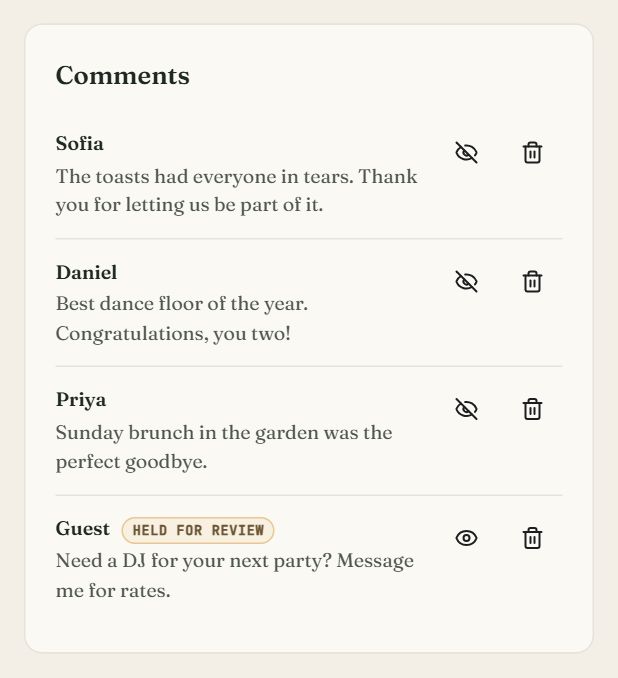
- 1Hide takes a comment off the card. The open eye shows it again.
- 2Delete removes it for good.
- 3Held for review. The screening flagged it, so guests don't see it until you show it.
Email it to your guests
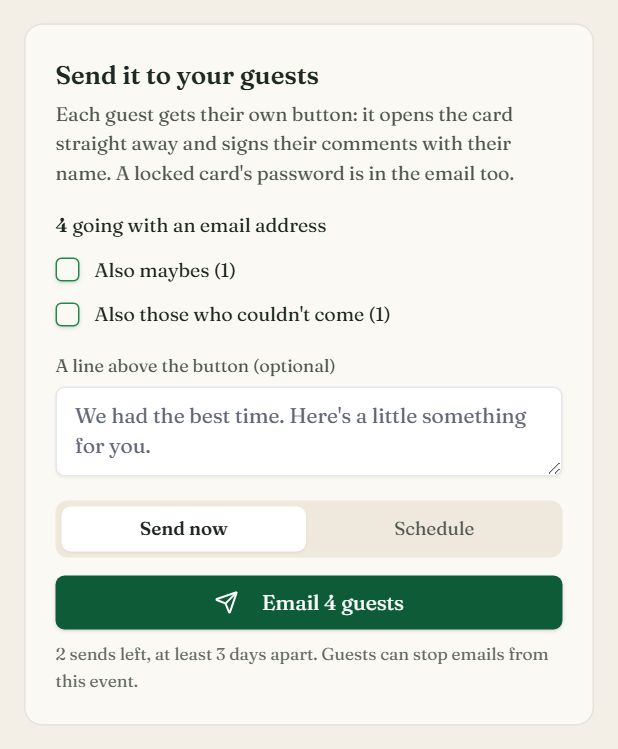
In the editor, under the preview. Send now once the card is live, or schedule it once the add-on is on.
- 1Also maybes and Also those who couldn't come add them to the guests who are going.
- 2A line above the button. An optional note in the email.
- 3Send now or Schedule. Schedule picks a date and time in your own timezone.
- 4Email … guests sends it. The line below counts the sends left.
- 1
Choose who gets it
Send it to your guests emails guests who replied with an email address. Going is included; tick Also maybes or Also those who couldn't come to add them.
- 2
Add a line (optional)
A short note shows above the button in the email.
- 3
Send now, or schedule it
Press the Email … guests button, which shows the count. Or choose Schedule, pick a date and time, and press Schedule send: it goes out within 15 minutes of that time, to the guests who match then. A card bought before the event can be scheduled for after it goes live by itself. You can send the card 2 times in all, at least 3 days apart.
- 4
Change or cancel a schedule
The panel shows when it's scheduled, with Cancel. Pick a new time under Change schedule. If a scheduled send can't go out, the panel says why.
- Each guest's button opens the card straight away and signs their comments with the name on their RSVP. On a locked card the email also shows the password.
- Every email has a one-click link to stop emails from this event.
- Rather share it yourself? Copy the link and send it any way you like.
Common questions
- How much is the Thank-You Page?
- $6 or 1 credit, once, for one event. It works on a free event too, and you can build and preview the card before you pay.
- Do guests need an app or an account?
- No. They open the card in their browser from the link or your email, and add photos, react and comment there.
- Can I make the card before the event?
- Yes. Buy it before the event and it goes live by itself the morning after. You can also publish it any time, or take it down.
- Can anyone post on my card?
- Anyone who can open it can react and comment if you allow them. Comments and photos are screened automatically, photos wait for your approval by default, and you can hide or delete any comment. Lock the card with a password to keep it to your guests.
- How many times can I email the card?
- Up to 2 times, at least 3 days apart, to guests who replied with an email address. Each email lets the guest stop emails from your event.
Still stuck?
Check the FAQ for quick answers, or send us a message and a person will reply.