RSVPs and sharing
Selling tickets from your event page
Guests pick what they want and pay by card, Apple Pay or Google Pay, on your event page. Free tickets cost nothing. Paid items cost 6% + 50¢ each, which you pass on to the buyer or cover yourself.
Updated
Set up your sale
- 1
Choose Tickets
On an event with no replies yet, open RSVP Form and set How guests respond to Tickets, then save. A Tickets tab appears.
- 2
Open the Tickets tab
On a computer it's in the left sidebar and the tabs above your guest list. On a phone, tap Menu at the bottom of the screen, then Tickets.
- 3
Add what you're selling
Press Add a ticket. Give it a name, a price, how many you have, and sale dates if you want them.
- 4
Set up card payments
Anything paid needs a Stripe account, which takes a few minutes. Free tickets don't. Guests can't buy paid tickets until it's done.
- 5
Choose who pays the fee and your refund policy
Both sit in the Tickets tab. Buyers see the refund policy before they pay.

Finding Tickets on a phone.
- 1Tickets.

Adding a ticket on a phone.
- 1Ticket, table, sponsorship or extra.
- 2Price. 0 makes a ticket free.
- 3How many. Blank means no limit.
- 4Save ticket.
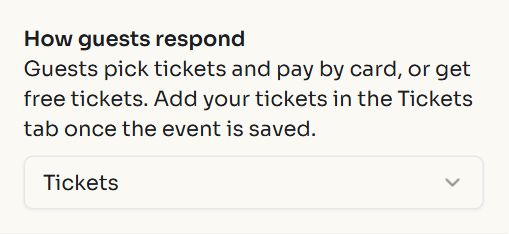
Tickets in the RSVP settings.
The Tickets tab
Once you have sales, the list of orders moves up under what's for sale. The settings you rarely change sit at the bottom.

- 1Add something to sell.
- 2Approve a sponsor, so they show on your page.
- 3Refund an order.
- 4Add a promo code.
- 5Who pays the platform and card processing fee.
- 6Your refund policy.
What guests see
On a phone, one button at the foot of the page opens the picker. On a computer the picker sits in the form on the page. Each order is one guest on your list, with one QR code that admits the whole order.
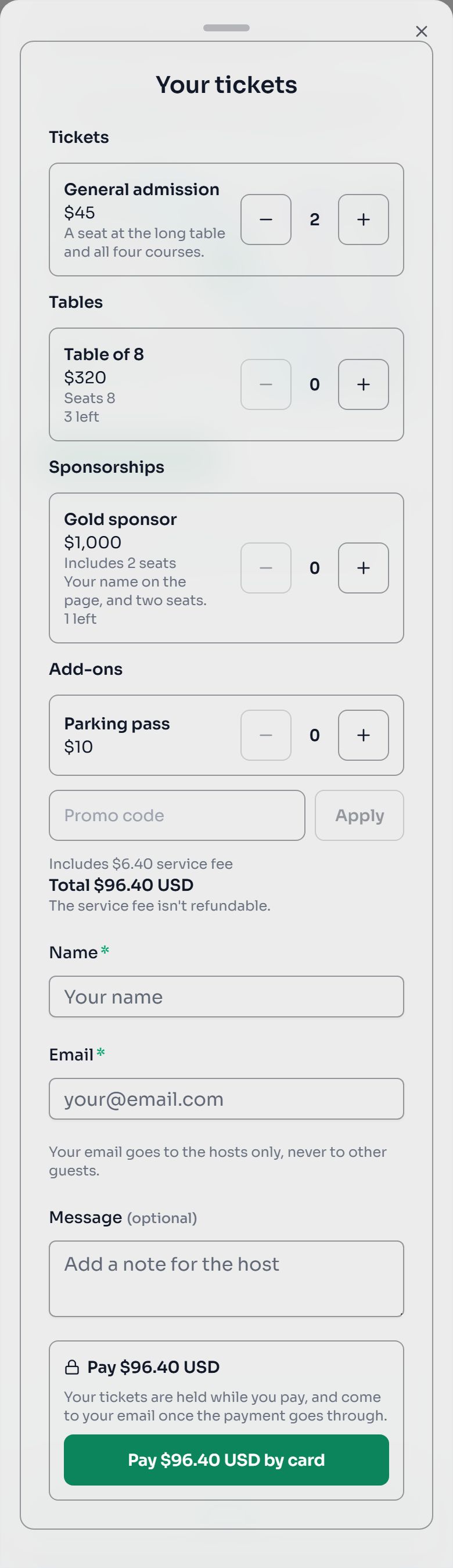
Picking tickets on a phone.
- 1Plus and minus set how many.
- 2A promo code, if they have one.
- 3The total, with the fee and your refund policy.
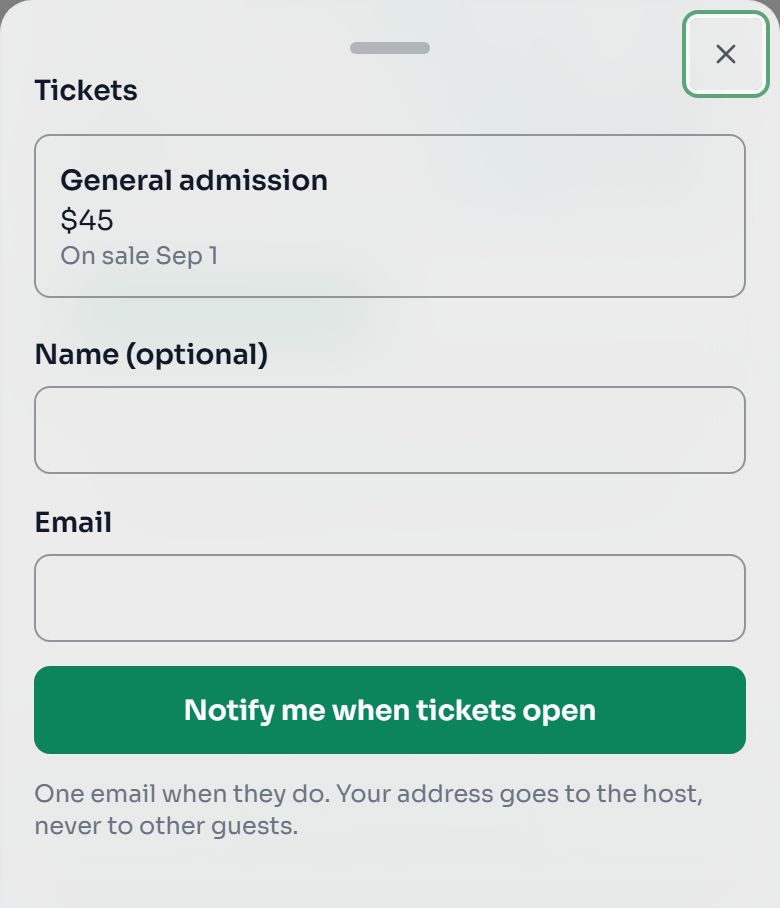
Before a sale opens.
- 1Notify me when tickets open.
Notify me when tickets open shows while nothing is on sale and something is still to come. Each person gets one email when a ticket can really be bought: not while your form is closed or you're full, and not when only an extra is on sale. The Tickets tab shows how many are waiting, and you can download the list.
Extras, tables and sponsorships
| Kind | What it is | Good to know |
|---|---|---|
| Ticket | Admits one person. | Can be free. Free tickets count toward your plan's RSVP limit; paid ones don't. |
| Extra | A meal, a shirt, parking. Bought with a ticket. | Has its own price and stock, so give a shirt's sizes separate extras. Promo codes don't apply. |
| Table | One price for every seat, up to $5000. | The buyer's party is the whole table, and each seat gets its own ticket. With Table Management, Seat table buyers in the seating editor adds a named table for each. |
| Sponsorship | A package up to $5000, with the seats you choose. | The sponsor types a name and website when they buy. They show on your page once you approve them, and you can add their logo. |
Promo codes
- A code takes a percent or an amount off every paid ticket in an order. Its limit counts orders, not tickets.
- To give someone a free ticket, make a 100%-off code and limit it to 1 order. They can still pick up to your Most per order, so set that low for a comp.
- A discount can't leave a ticket under $1 unless it makes it free.
Refunds

A refund on a phone.
- 1What the buyer gets back.
- 2Refund. There's no undo.
- Lost email? Press Resend confirmation on the order under Sales in the Tickets tab. The buyer gets their receipt again, with each ticket's QR and PDF.
- Refund an order from the Tickets tab. Its tickets go back on sale, its QR code stops working, the guest shows as Refunded, and the buyer gets an email.
- The platform and card processing fee is never refunded. A buyer who paid it doesn't get it back, and if you covered it, it comes out of your Stripe balance.
- A refund goes through only when your Stripe balance covers it.
- All sales final tells buyers they can't get a refund. You can still refund on purpose, if you cancel the event. Each order keeps the policy it was sold under.
- An event with paid orders can't be deleted until every one is refunded.
Refund everyone at once
If you cancel the event, the event's owner can press Refund all beside Sales in the Tickets tab. Co-hosts refund one order at a time.

It says what will happen before anything moves, and warns you if your balance is short.
- 1What will happen.
- 2An optional note, added to each buyer's email.
- 3Refund all. There's no undo.
- 1
Sales close first
Nobody can buy while it runs, and open checkouts stop. Sales stay closed until you reopen them under RSVP Form.
- 2
Oldest orders go first
Each buyer is refunded and emailed, and their QR code stops working. Free orders are canceled. Orders sold as final are included, and the platform and card processing fee stays non-refundable.
- 3
If your balance runs out, it stops
It tells you how many orders are left and how much you're short. Run it again once more money reaches your balance: nothing refunds twice.
Getting paid
- Card payments are paid out to your bank every Monday once your balance reaches $25; a smaller balance goes out after 30 days with no new payment. In a month where the fees on your card payments don't cover Stripe's payout costs, the difference (about $3.50 at most) comes out of the payout. "Pay out now" sends your balance any time for $1, from $5. Money from your first ticketed event pays out 3 days after the event.
- Ticket and RSVP Fee money from a new seller pays out 3 days after the event, until they have sold $250 across 5 payments on finished events. Settings shows what's held.
- If a buyer disputes a charge with their bank and wins, the amount and the bank's fee come out of your balance. An inquiry that never becomes a dispute costs you nothing.
At the door
Open Check in and scan each buyer's QR code. See Check-in and tickets, which works the same way on a phone.
Common questions
- Do I need a paid plan to sell tickets?
- No. Tickets work on any plan. Paid items cost 6% + 50¢ each, and paid tickets don't count toward your plan's RSVP limit.
- Can I sell tickets from my phone?
- Yes. Everything works on a phone: tap Menu, then Tickets. Guests pick and pay on their phones too.
- Can I add a guest by hand on a ticketed event?
- No. Every guest holds a ticket. To give someone one for free, make a 100%-off promo code.
Still stuck?
Check the FAQ for quick answers, or send us a message and a person will reply.